
Save a Custom Pixi Environment (Tutorial)
Last updated 2026-07-06At a Glance
A Pixi environment is a directory that contains your curated set of packages plus a manifest used to resolve dependencies. Your custom Pixi environment can be saved and reused when you or your collaborators create new IDEs. The environment is also easy to export and trace for transparency and reproducibility. This tutorial explains how to use the SDK, Pixi, and Google Cloud Build to create a custom Pixi environment for your IDE. If you have questions or need help, contact Support.
The new HISE environment-selection prompt now handles many scenarios that previously required the save_custom_pixi_environment() workaround. If you upload files while more than one Pixi environment is available, HISE prompts you to choose which environment to associate with your data, which reduces the need to save a custom environment just to keep files and results tied to the correct setup. When you want to formally save or share a custom environment for reuse in HISE, use save_custom_pixi_environment().
NOTE
HISE lets you stack Pixi environments in the shared environment packages space (Research > Manage Environment Packages). You can arrange related environments into neat layers so iterative versions are grouped coherently, rather than spread across multiple pages of standalone environments. Stacks keep the relationships among environments logical and visible, letting you reorganize them as your dependencies evolve. Only the top layer in each stack is active and visible, while inactive layers are consolidated and preserved for reference. Layers can be quickly expanded or collapsed, and any environment can be promoted to the top when you want to revisit it.
When you change a layer in a shared stack, you change it for everyone who uses those environments, keeping you and your team aligned on the active configuration. For details, see Get Started with Pixi/Conda Environment Stacking (Tutorial).
When to Use This Feature
Use this feature when you want to create a reusable Pixi-based IDE environment that other users can select from the HISE UI:
Capture a Pixi environment from an existing IDE so others can reproduce the same configuration.
Share a standard analysis environment with your team so that collaborators start with a consistent set of tools and libraries across IDEs.
Preserve environment state for important analyses so you can return to the same package versions for follow-up work or review.
Maintain separate Pixi environments for different workflows (for example, quick exploration vs. publication-ready analysis).
Don't use this feature if your project still relies on a Conda-only environment. If you don't need to reuse or share your environment, use Conda tools or create a one-off Pixi setup instead.
Required Configuration
To avoid build errors when you save a custom Pixi environment, the R version must be 4.4.1 or higher, and the Python version must be between 3.10 and 3.13. Your pixi.toml must include both conda-forge and bioconda in channels. It must also include python or r-base in dependencies that match the languages you specify when you call save_custom_pixi_environment(). For example, languages=["python"] requires python in your dependencies list. Here's an example of a pixi.toml file:
[project]
name = "my-env"

[dependencies]
python = ">=3.10"
pandas = "*"

[channels]
channels = ["conda-forge", "bioconda"]
NOTE
If you include comments in your Pixi environment files, your Pixi build will fail.
In the pixi.toml file, set the environment name to a simple identifier, not a full file path (for example, my_pixi_env instead of home/workspaces/my_pixi_env). If you use a slash (/) in the filename, your build will fail.
SDK Method
This SDK call saves a custom Pixi environment with additional metadata.
Signature
The box below shows the method signature for save_custom_pixi_environment() (Python) | saveCustomPixiEnvironment (R).
 save_custom_pixi_environment()
hp.save_custom_pixi_environment(
    env_name: str,
    description: str,
    languages: list[str],
)
saveCustomPixiEnvironment()
hp.saveCustomPixiEnvironment(
    envName: str,
    description: str,
    languages: list[str],
)
Parameters
The parameters for this method are listed in the following table. In each key:value pair, the value must be of type list.
| Parameter | Data type | Required or optional | Description |
env_name | str | required | Name of the environment in the HISE UI. |
description | str | required | Description of the environment or use cases. |
languages | list[str] | required | Response from the HISE API when saving the environment. Examples: ("python") or ("python", "r") |
| Parameter | Data type | Required or optional | Description |
envName | str | required | Name of the environment in the HISE UI. |
description | str | required | Description of the environment or use cases. |
languages | list[str] | required | Response from the HISE API when saving the environment. Examples: c("python") or c("python", "r"). |
 Get Help
If you get stuck while creating your custom Pixi environment, refer to the steps of this tutorial (examples are in Python unless otherwise specified). To use the baked-in help in your IDE, try one of the following commands.
| Python | R | Output |
help(save_custom_pixi_environment) | help(saveCustomPixiEnvironment) | Function signature, list of parameters, class, and a brief description of the method in a compact plain-text format |
hp.save_custom_pixi_environment? | ?saveCustomPixiEnvironment | Method signature, docstring (description), file location, and file type in more readable format |
hp.save_custom_pixi_environment?? | hise::saveCustomPixiEnvironment | Signature, docstring, file path, a verbose set of metadata, and the source code for the method |
Still not working? File a Support ticket.
Instructions
 Configure a Pixi environment
1. Navigate to HISE, and use your organizational email address to sign in.
2. From the top navigation menu in HISE, click RESEARCH > Manage Evironment Packages.
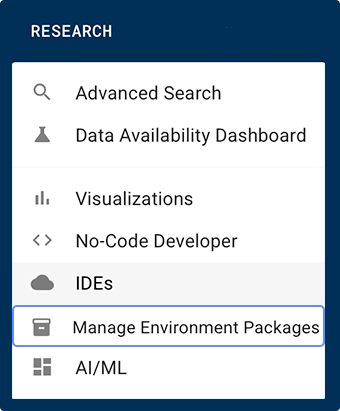
3. On the Manage Environment Packages page, click CREATE ENVIRONMENT.

4. On the Select Package Manager page, toggle to the Pixi tab.
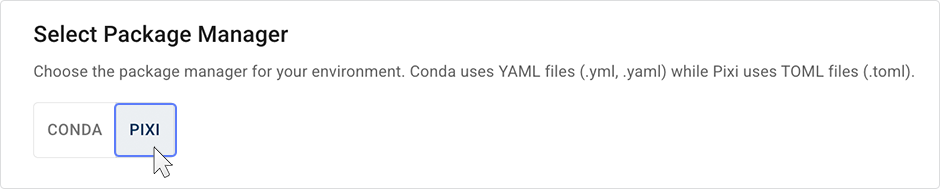
5. In the Create Pixi Environment dialog box, enter the requested details:
A. In the Name field, enter a name for yor IDE (for example, "Single-cell RNA-seq – Pixi")
B. In the Description field, enter a brief description of the key packages or analysis tasks included in your custom environment and the languages you tested in this environment.
C. In the Language field, keep the default language, Python, or click the arrow and select R from the drop-down menu. If applicable, you can select both.
D. In the Privacy Settings field, keep the default PRIVATE, or click SHARED to share your IDE with all colleagues who have access to this project. To share your IDE with specified users, click SELECT USERS, and add add their email addresses to the Share with users field.
E. To improve the discoverability of your shared IDE, enter one or more tags into the Tags field. Use the key:value format.
F. Click CHOOSE FILE, and upload a pixi.toml or pyproject.toml configuration file.
G. Click SAVE CHANGES.
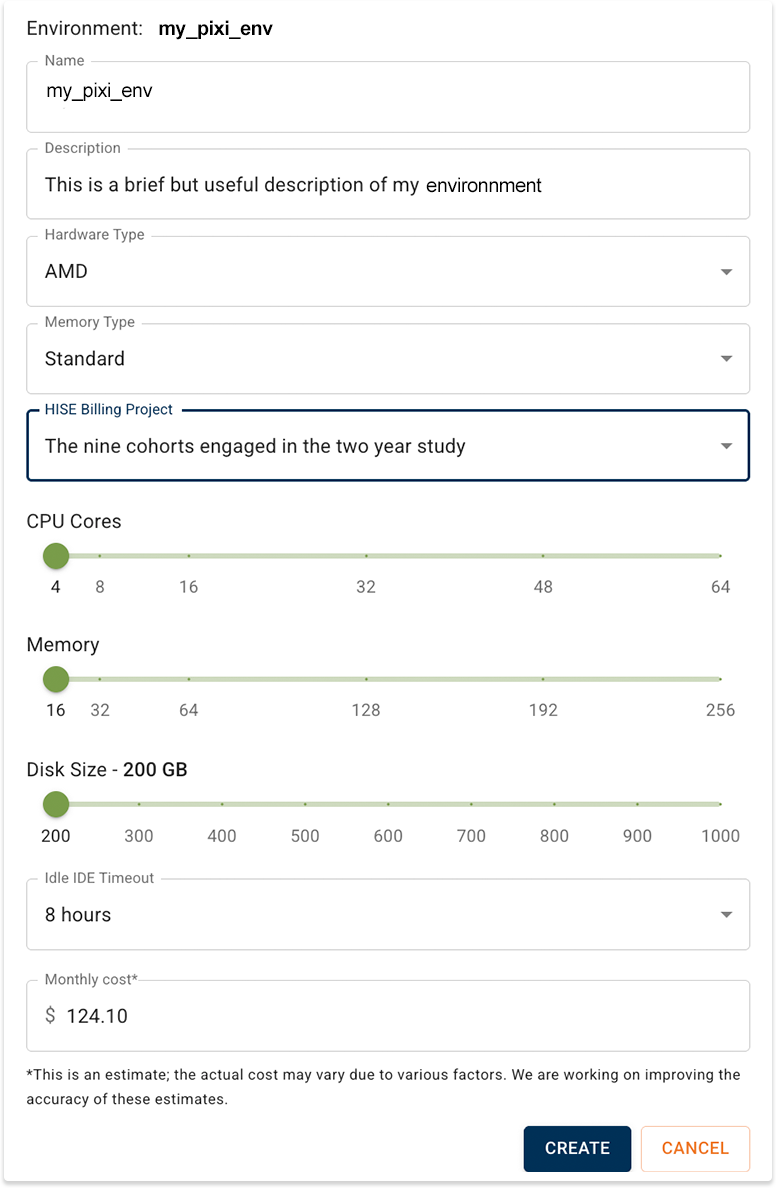
 Create a Pixi IDE
1. Refresh your screen, and click the card that represents the Pixi environment you created in Step 1.
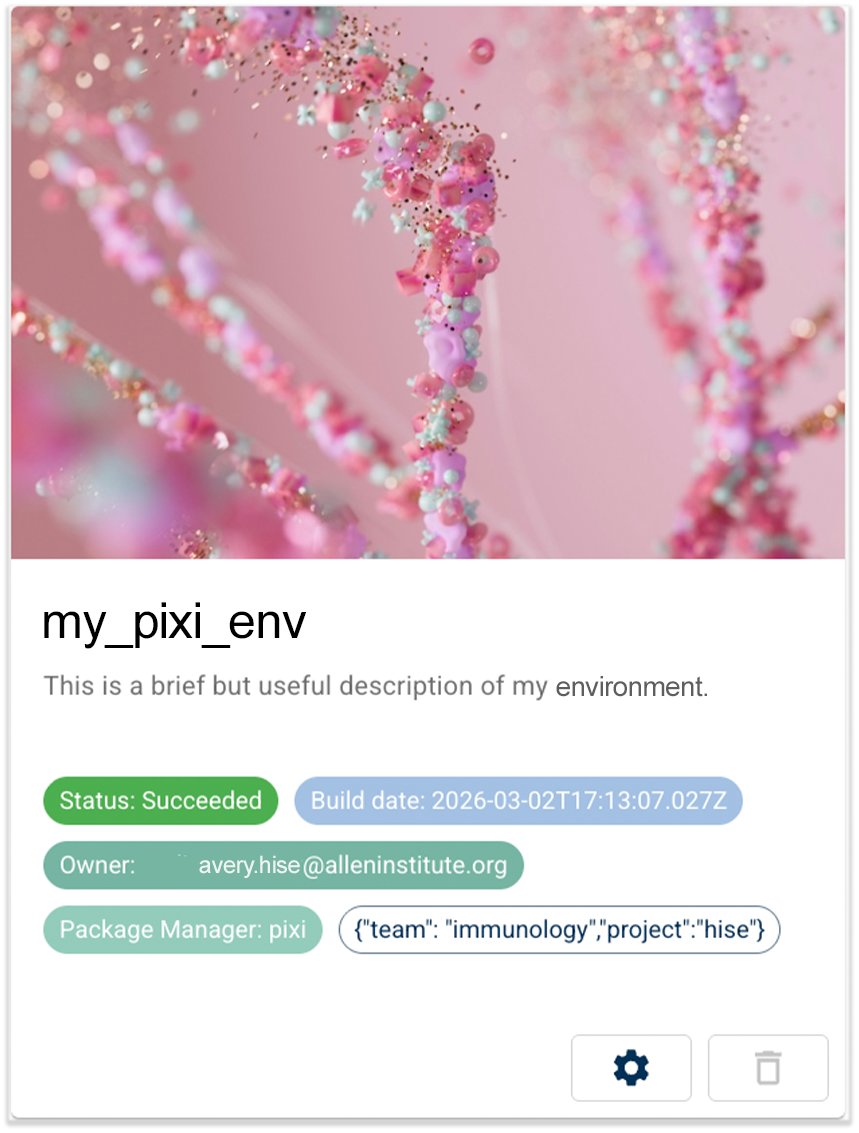
A chip on the front of the card verifies that it's a Pixi environment.

2. On the Environment Details page, click CREATE IDE.

3. On the IDE Settings page, enter the requested information, and click CREATE.

 (Optional) Install R packages
You can add R packages to your Pixi environment in one of two ways, depending on where the package lives.
For R packages hosted on GitHub, use the
installGithubPackageToPixiEnv()SDK instead of relying on Pixi Packs. This SDK call is the supported way to install R GitHub packages into a Pixi environment. It replaces the oldj tarball‑based approach. For details and examples, see Install a Github Package in a Pixi IDE Environment (Tutorial) .For R packages available from standard R repositories (for example, CRAN or Bioconductor), declare them directly in your
pixi.tomlso the solver picks them up when the environment is built. In the[dependencies]section, include entries such asr-lifecycle = “*”, which instructs Pixi to install the most recent version that doesn't conflict with other dependencies.
After you editpixi.toml, rebuild or refresh your Pixi environment from HISE. Then open an IDE that uses this environment and confirm that you can load the packages from R (for example,library(lifecycle)).
NOTE |
|---|
Pixi pack doesn't treat R source tarballs the same way it treats Python wheels. Even when tar files are present at build time, Pixi doesn't record them as injectable artifacts in the pack, so they won't automatically reinstall when you unpack the Pixi pack in a new IDE. If the R packages you installed in the source IDE (for example, ArchR) are missing from your new custom environment after creating an IDE from your Pixi pack, try the following troubleshooting tips.
|
 Save your Pixi environment
When you're satisfied with your custom Pixi IDE environment, save a Pixi pack to capture it for future use. This tutorial assumes Cloud Build and the IDE management service are already configured to handle Pixi packs. At a high level, the Pixi pack environment save flow takes the pixi.toml and pixi.lock files from your active environment, injects any Python package files (wheels) from the environment’s PyPI directory, and sends these files to the IDE management service. This service stores them and configures Cloud Build tasks that install the packages when the IDE is created. Pixi pack supports only PyPI wheels, not source distributions, such as most R tarballs.
1. Open the Pixi-based IDE you created in Step 3,
2. To confirm that the IDE is using a Pixi environment, open a terminal in the IDE, and run the following command:
pixi info
NOTE |
|---|
Locate the environment directory that contains |
3. To activate the Pixi environment and deactivate Conda environment variables, run the following command:
pixi-shell
NOTE |
|---|
To activate a Pixi environment in a Conda IDE, you must use |
To ensure you don't inadvertently install packages into the wrong environment, run
conda deactivate(once per IDE).Install any additional GitHub-hosted Python packages you need. For details, see Install a GitHub Package (Tutorial). Be sure to import the package and confirm that it's installed correctly. See the tutorial for instructions.
Open a Python notebook. In the first cell, use the following command to import the HISE SDK. Then press Shift+Enter to run the cell.
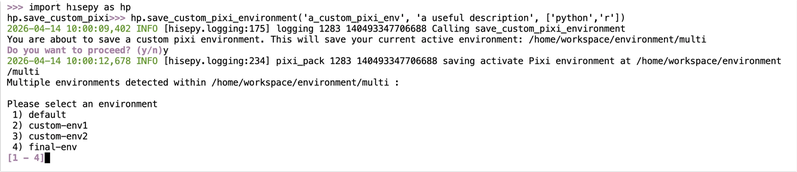
import hisepy as hpTo make the SDK call, enter the following code and run the cell. This creates a card you can select from the IDE creation workflow in order to reuse this environment.
hp.save_custom_pixi_environment(
    env_name="myCustomPixi",
    description="Pixi environment for testing and analysis. Includes project-specific GitHub utilities and is compatible with Python.",
    languages=["python"]
)
When your pixi.toml includes more than one Pixi environment option, HISE prompts you to choose which Pixi one to save when you call hp.save_custom_pixi_environment(). This ensures that environment you capture matches the specific Pixi environment you used in the IDE.
 Use the saved custom Pixi environment in a new IDE
After you save your custom Pixi environment with hp.save_custom_pixi_environment(), HISE makes it available as a reusable saved custom Pixi environment card you can select from the IDE creation workflow. You can use it to create additional IDEs with the same configuration.
| When you save a custom Pixi environment, HISE passes the |

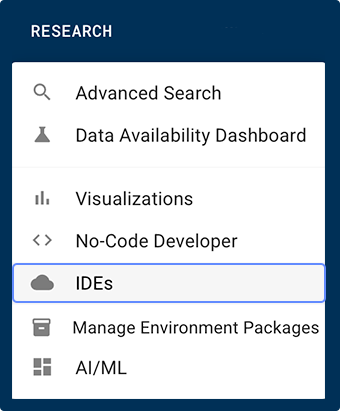
1. From the top navigation menu, click RESEARCH, and choose IDEs from the drop-down menu.
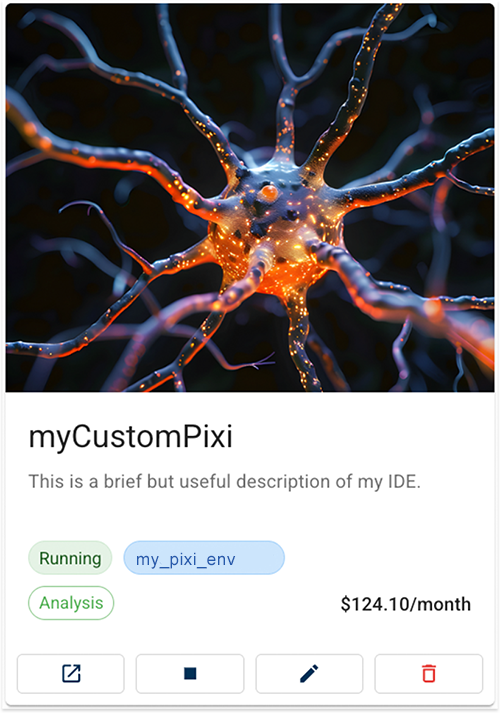
2. To use your new saved Pixi environment, click the card that represents the environment you captured in Step 5.
3. On the Create an IDE with this package page, click CREATE IDE.
4. On the IDE Settings page, enter the requested information (Name, Description, and HISE Billing Project), and click CREATE.
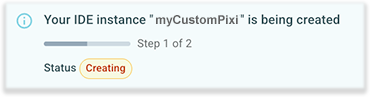
5. Wait while the IDE is provisioned. You can monitor its status on the IDE Details page.
6. Click the boxed arrow icon in the lower-left corner of the card to open the IDE.

7. To verify that your custom environment is in use, open a terminal in your IDE, and run pixi info. The output should looks something like the block below:
|
 Related Resources