Attach an IDE to a Study (Tutorial)
Last updated 2026-08-27At a Glance
A HISE study is a workspace for collaborative research. Studies contain documents, data, visualizations, research methods, statistics, IDEs, Certificates of Reproducibility, and other project materials. This document explains how to attach an IDE to a study in HISE. If you have questions, contact Support.
Instructions
 Upload your input files
Navigate to HISE, and use your organizational email address to sign in.
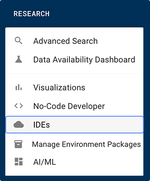
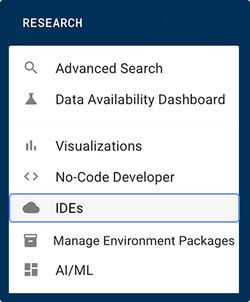
From the top navigation menu, click RESEARCH > IDEs.
Find the card for the IDE you want to add to your study.
A. To create a new IDE, click CREATE IDE INSTANCE. Then follow the remaining instructions (Steps 6-10) in Create Your First HISE IDE (Tutorial).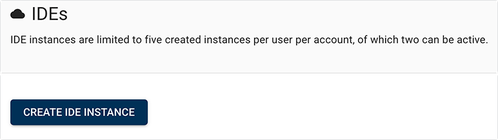
B. To open an existing IDE, click the Play icon.
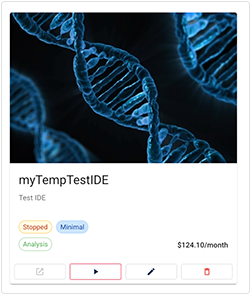
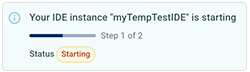
C. When you're notified that the IDE is running, click the boxed arrow icon to open it.


D. On the Launcher tab of your open (new or restarted) IDE, in the Notebook section, choose Python or R.
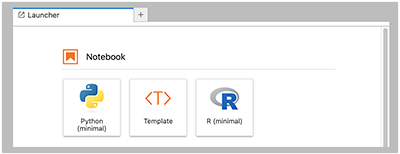
To import the HISE SDK and (optionally) the Pandas library, run the following code in the first cell of your notebook.
import hisepy as hp
import pandas as pd
To find your file input IDs, follow the steps below.
A. In the results window in Advanced Search, use the checkboxes to select the items you want to include, or click SELECT ALL ITEMS.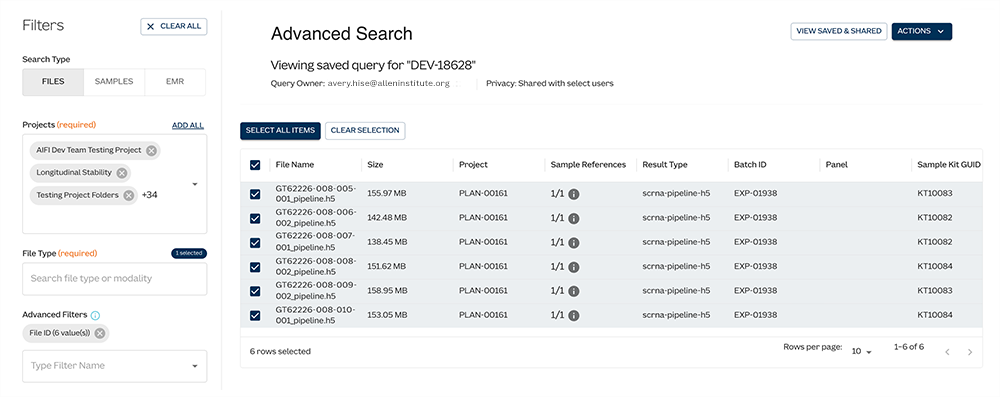
B. In the floating options menu, select GET UUIDS.
To download your input files to HISE, return to your open IDE notebook, and enter the following code (replacing the example file IDs with your own, of course) in a new cell. This command stores the cached files in the cloud and makes them available to your local workspace for processing.
hp.cache_files(["9f9dbd27-2861-4600-9920-729dbcbd61da", "166a161c-b615-4476-b648-86701ae7230b"])To create and save an output file, run the following code in a new cell. If you like, replace
output-file.jsonwith a more descriptive filename. You can also use a different file type, such asto_hdf,to_excel, orto_dict.df = pd.DataFrame()
df.to_json("/home/workspace/output-file.json")Use the following instructions to find your
study_space_id, which you'll need in a later step.
A. From the top navigation menu, click COLLABORATION SPACE, and click the card for the study space whose ID you want to add.
B. In the left navigation panel, select the Study Details tab, and click the Copy icon next to the Study ID.
 View the IDE in your study space
From the top navigation menu in HISE, choose COLLABORATION SPACE, and click the card for the study to which you uploaded your files.
From the side navigation menu, choose IDEs.
This view shows all the notebooks that have uploaded data or visualizations to your study.
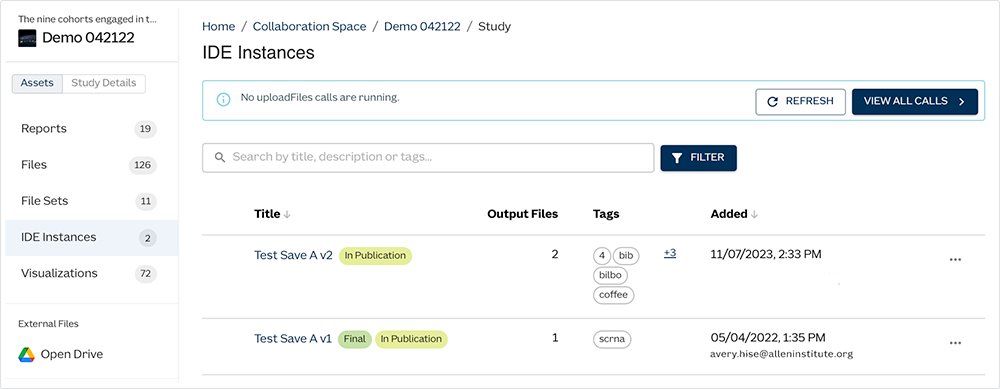
For details about an IDE, including the dates created and last modified, click the IDE's title.
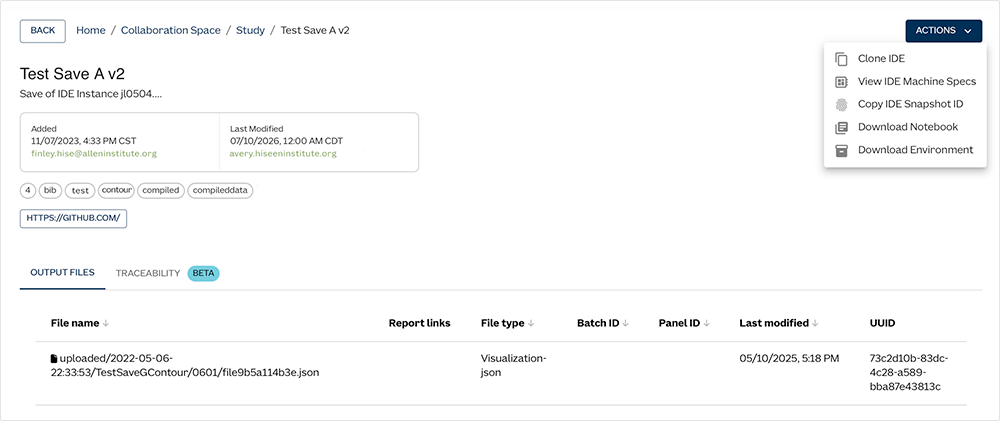
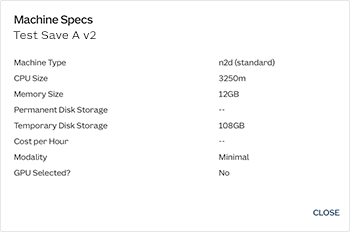
To view specs, click ACTIONS > View IDE Machine Specs. Note the other actions available from the ACTIONS button. (For details, see the IDE documentation.)
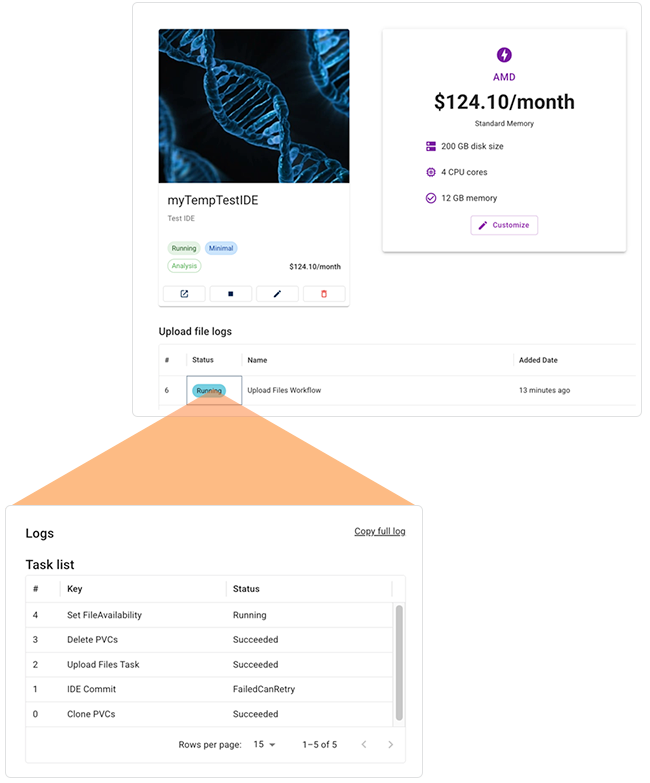
If the IDE doesn't appear in your list of IDE instances, it's likely that the processes are still running. To see which processes are complete and which are still running, follow the steps below.
A. In the HISE top navigation menu, choose RESEARCH > IDEs.
B. Click the card for your IDE.
C. To drill down into the upload files workflow, click the Running tag. Your IDE will appear in the IDE Instances side navigation only after all processes have succeeded.