
Get Started
Learn about HISE or get help.
Billing
Manage individual or organizational accounts, projects, and IDE expenses.
Data Ingest
Prepare your data, ingest it, and manage your pipeline.
Collaboration
Work on studies, share data and visualizations, and publish your findings as a publication or Data App.
Research
Find and access your research, store intermediate files, manage IDE state, and save results or visualizations.
IDEs, SDKs & AI/ML
Create and manage IDE packages and instances.
Visualizations
Create, save, and share data visualizations.
HISE Q&A and Troubleshooting Guide
Answers to SDK questions and other common issues.
Submit a Help Ticket to Our Team
Guide to filling out our Support Request form.
What's New?
2026-07-24 | Get Automatic IDE Security Vulnerability Scanning
To keep your work secure and comply with NIST SP 800-171 requirements, HISE will begin scanning IDE environments for known security vulnerabilities in installed packages. Every 2 weeks you’ll receive targeted notifications when vulnerabilities are detected in your IDEs, along with the affected package name, installed version, fixed version, and risk details, so you can decide exactly what needs attention.
Package | Risk Score | Severity | Installed Version | Fixed Version | ||||
freetype | 23.0 | High | 2.12.1 | 2.13.3 | ||||
openssl | 32.0 | Critical | 3.0.7 | 3.0.15 |
Going forward, you’ll be expected to remediate these vulnerabilities by updating affected packages in your IDE environments. Use your usual package manager (Pixi or Conda) to install the fixed version, and then verify that your IDE still runs as expected after the update. For details, see Respond to Security Vulnerability Notifications (Tutorial).
2026-07-24 | Map Files to Samples in a Single Upload
When you upload a batch of results, you can now assign file type and input sample metadata for each file in one call, instead of splitting files across multiple uploads or using a shared metadata block that can tag files with the wrong type or provenance. The file map keeps each result file correctly linked to its own samples and upstream files, so downstream search, validation, and analysis stay accurate. The new upload_file_map() SDK lets you describe each file, set the context, and run one upload that preserves file provenance end to end. For details, see Upload a File Map to Associate Files with Samples (Tutorial).
2026-07-04 | Try Hassle-Free Account Switching in HISE
Trying to find the right watchfolder, files, IDEs, or billing info? Now you can see your account information at a glance, switch accounts with a single click, and change your project selections without losing your place.
• Check your account from any page in HISE. A quick glance at the access summary tells you which account you’re in and how many available projects are selected—all without navigating away from your current page.
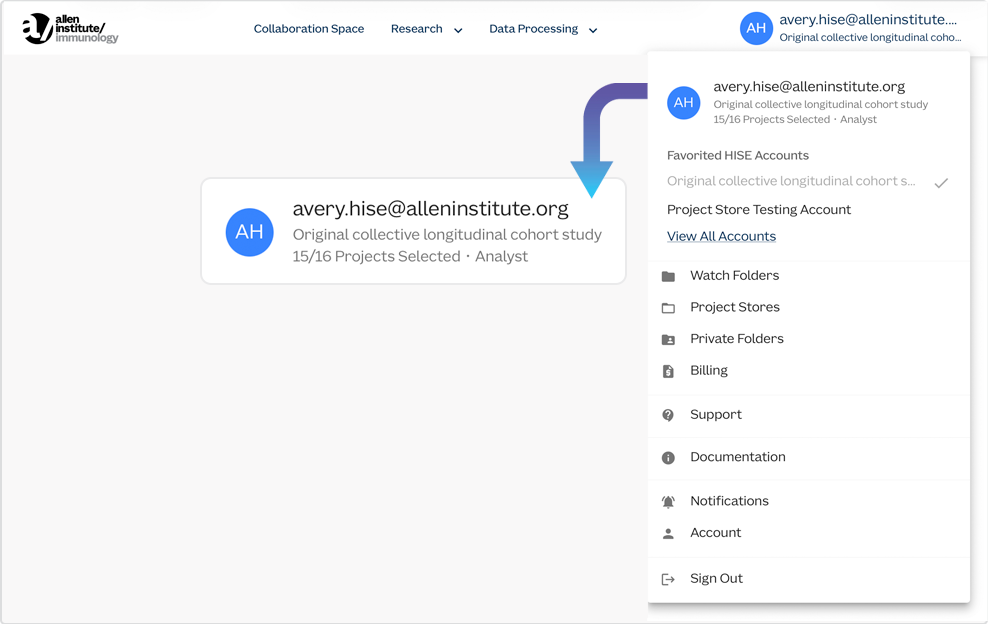
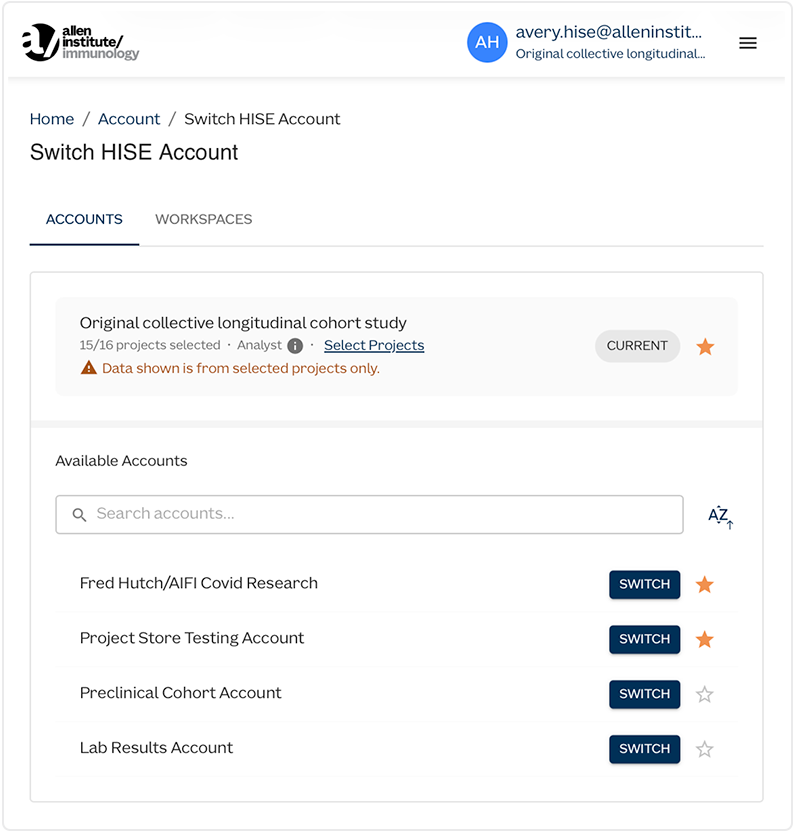
• Get the big picture in one complete dashboard. When you need full account and project details, click View All Accounts to open your dashboard. There you can search for accounts by name, sort them alphabetically, click the star to mark account favorites, and drill down to project selections in your current account.
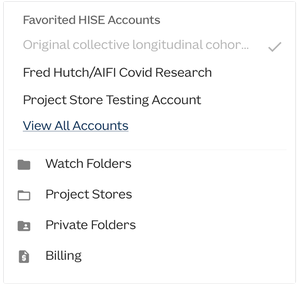
• Use favorites to switch accounts in a single click. Marking favorites in your dashboard populates the quick-switch list in the main menu, so you can jump between accounts instantly from any page in HISE.
2026-07-07 | Trigger Automatic Batch ID Assignment at Ingest
You can now assign a batch ID to your files directly in the manifest.csv at ingest—no need for manual updates in the Project Store after upload.
Previously, batch IDs had to be added manually after ingest, which was time-consuming, tedious, and error-prone. Now, including a single batchId field in your manifest file triggers HISE to assign the batch ID automatically. (NOTE: New batch IDs may take up to 10 minutes to become available after they’re created in SLIMS.)
To trigger automatic batch ID assignment at ingest, add a
batchIdcolumn to yourmanifest.csv. To get examples of manifests covering various use cases, see Ingest Data into the Project Store (Tutorial).To use nested folder paths, specify the full relative path in the file column.
Apply one batch ID to all files in a manifest, or assign different batch IDs to individual files.
2026-07-07 | Organize Environments with Pixi/Conda Stacking
As you iterate on your research, environment packages tend to pile up, and it gets harder to see which environments are current and reliable. Archiving those environments, though, can break IDEs that were created with them. IDE environment stacking solves this problem by grouping related Conda and Pixi environments into ordered stacks, consolidating versions without removing them from shared access. Only the top layer of each stack is active, so you know at a glance which environment your IDE is using.

When you change a layer, you change it for everyone who uses the environments in that stack, helping you and your team manage your shared environments:
Keep older environments available without cluttering the shared list or breaking existing IDEs.
Group newer Pixi environments with their older Conda equivalents so you can keep related environments together and compare them, troubleshoot changes, or revert.
Search and sort layers by name, date, or status so you can quickly surface the right environment in a stack instead of hunting through scattered environments.
Rearrange stacks as your research evolves by adding, moving, or removing layers, or promoting a new layer to the top of the stack.
For details, see Get Started with IDE Environment Stacking.
2026-07-07 | Quickly Gauge File Relevance with Sample References in Advanced Search
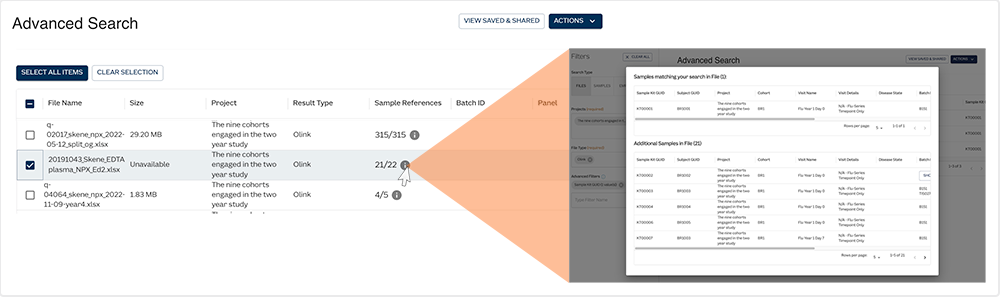
The Advanced Search results window now includes a Sample Referencescolumn. This column shows how many samples in each file match your current search filters, so you can assess a file's relevance before adding it to your results. To see sample-level details, including sample kit GUID, subject GUID, cohort, and visit details, click the info icon in the Sample References column.
2026-06-08 | File IDs Now Displayed for Partial File Download Errors in read_files and cache_files
Error messaging for read_files and cache_files has been updated to give you more information so you can quickly recover if some of your files don’t download successfully. Now you now see exactly which files failed and which ones you can keep using without rerunning your whole workflow.
Understand what went wrong faster. When one or more files can’t be downloaded, the response now includes a message that might be helpful in determining why the download failed: user’s role and file’s availability doesn’t permit access
See exactly which files failed. Any files that don’t download are summarized in the output as
Some files failed to download: [list of file IDs], along with an error message similar to the one shown above.Keep working with the files that succeeded. Files that download successfully in the same
read_filesandcache_filescall remain available, so you can continue your analysis or processing while you address only the file IDs that failed.
To see the new behavior, submit a list of file IDs to read_files or cache_files as you normally would. If any files fail to download, the response includes an error message plus the “some files failed to download” warning and the list of affected file IDs.
2026-06-08 | Visualization Support for Pixi Builds
HISE now offers Pixi support for visualizations, making it possible to build an app from your IDE using an existing Pixi environment. You can call save_visualization_app() directly from your IDE, use a new Pixi-powered build template, and rely on Pixi across the build and run stages.
Unified dependency definitions. The
save_visualization_app()SDK method now works seamlessly from Pixi-based IDEs, sending a Pixi-compatible environment file into the build process so you don't have to maintain separate dependency definitions.Faster visualization builds.The updated visualization build path now uses Pixi as the package and environment manager. It also introduces a template labeled
Dash with Pixi, without pre-installed packages (v3.0), so that build uses your Pixi environment instead of preinstalled packages.Visualizations aligned with your Pixi workflow. Moving your visualization builds to Pixi means the build pipeline uses the same Pixi environment you already rely on in your IDEs. You define dependencies only once. The deployed visualization behaves the same way it did in development. No surprises.
To use this feature, create or open a Pixi-based IDE and call save_visualization_app(). When prompted, select the template labeled Dash with Pixi, without pre-installed packages (v3.0). For details, see Save Visualizations in HISE (Tutorial). If you have questions or need help, contact Support.
2026-05-26 | AI/ML Stacking Helps You Organize Related Environments
You can now stack related AI/ML environments and training runs into ordered groups to highlight active layers and show the relationships among the layers, while keeping older iterations for context or comparison. Each layer is labeled by name, description (optional), modified date, and status (such as Available). As your research evolves, you can move, remove, add, or delete layers or dissolve stacks to accommodate your workflow. The underlying environments and their reproducibility are preserved.
Try it yourself. Go to the AI/ML hub (Research > AI/ML) to see the new stacking view. To try it, create a new stack from two or more environments or training runs.
Reorganize layers as your analysis evolves. Stacking gives you the flexibility to add new layers, move layers, or set a new training run or environment at the top of the stack.
See only what you need. You can show or hide deleted environments and training runs, remove layers, or dissolve a stack while keeping all underlying components intact for reproducibility.
For details and step-by-step instructions, see Create an AI/ML Stack (Tutorial). If you have questions or need help, contact Support.
2026-05-14 | Private Folder Access from Your Laptop
You can now reach your existing HISE private folder directly from your laptop. This update lets you use gsutil to move files between HISE and your laptop as you explore data. To make it easier to upload files from your laptop, HISE also now displays your private folder’s cloud storage bucket name at the new Private Folders link on the main menu.
For details, see Get Direct Access to Your Private Folder (Tutorial) and Download Files to Your Laptop (Tutorial) .
If you have questions or need help, contact Support .
NOTE
You can use gsutil to copy files or folders directly from your laptop into your HISE private folder. Be aware that using this workflow can compromise reproducibility. In addition, data stored in private folders counts toward your team's cloud billing quota, so be sure to remove or delete files when you no longer need them.