
Attach Metadata to Make Files Searchable (Tutorial)
Last updated 2026-08-27At a Glance
Automated pipelines let HISE generate result files with attached subject and sample metadata, standardizing data processing for each assay. Certain types of files, however, such as those containing experimental or pilot data, are unsuitable for pipeline ingestion and must be manually uploaded to a Project Store and then downloaded to an IDE. Metadata is not attached to these files, and a manifest is not included.
There are two options for attaching metadata. The first, which we recommend for transparency, reproducibility, and searchability, is to associate metadata with your files at ingest. The second option is to attach the metadata later, after some experimentation. This document offers instructions for both options.
Finally, some projects require that specific demographics data be submitted through a watchfolder. For details, see Use Watchfolders to Ingest Data (Tutorial).
NOTE
To make your work reproducible and easily findable in an advanced search, attach metadata to your files at ingest.
File Manifest
The manifest lists all files to be ingested, along with their file types and sample references. To ensure that HISE recognizes the file, it must be named manifest.csv. The accountGuid and projectGuid are supplied by the HISE Support team, not by the user. Contact Support to request a predefined file manifest. If you really want to look up the GUIDs on your own, see the FAQs page.
NOTE
On the Watchfolders screen, the far-right column, Accepted File Types/Content Type, shows which file formats the watchfolder accepts. If the file type you want to use isn't listed, contact Support.
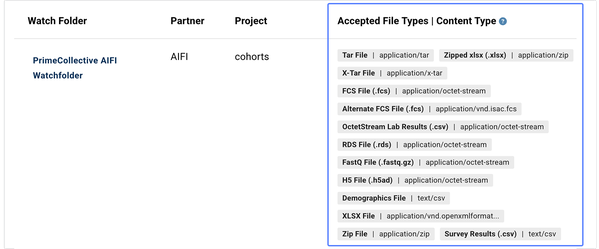
Below is a sample manifest.csv file, which is needed if you submit a tar file.
Lines 1 and 2. The first two rows show the account and project to which the file data belongs. This information is not required but helps ensure that the metadata is associated with the correct account and project (for example, if the file is dropped into the wrong watchfolder).
Line 3. The third line is a static header showing three columns: file, samples, and fileType. If a file is not associated with a sample, the special keyword reference can be used instead of samples.
Subsequent lines. The remaining lines contain the actual metadata: each file name, the specific sample(s) with which it's associated, and the file type. Multiple samples are separated with a semicolon (
;) as the delimiter.
The batchId column is optional—not all users work with batch IDs. To reflect the most common case, the example below shows a manifest without one. If your workflow uses batch IDs, see Ingest Data into the Project Store (Tutorial). It shows the batchId column in three separate example files, including single-batch, multi-batch, and nested folder use cases.
NOTE
In any manifestj.csv file, accountGuid and projectGuid are optional. If you do include them, the values must ber filled in. Leaving the cells blank creates a critical error.
accountGuid | 10f58583-1cdf-4f18-8de4-dc1ca94783e2 | NA |
projectGuid | e206cf7a-5b13-478f-b842-a305fe4954d8 | NA |
file | samples | fileType |
population-stats.csv | KT00970;KT01245;KT01244;KT00971 | FlowCytometry |
Option 1: Attach Metadata at Ingest
The first way to add metadata is to attach it at ingest to files destined for a Project Store. To begin, contact Support to request a predefined manifest for SLIMS. Then tar up your files and ingest them into a watchfolder.
Instructions
 Create a manifest
Navigate to SLIMS, and use your organizational email address to sign in.
From the top navigation menu, click the Content tab.

Use the filters and checkboxes to find and select the project for which you want to create a manifest file.

Remain on the Content tab, and click the ELN tab.

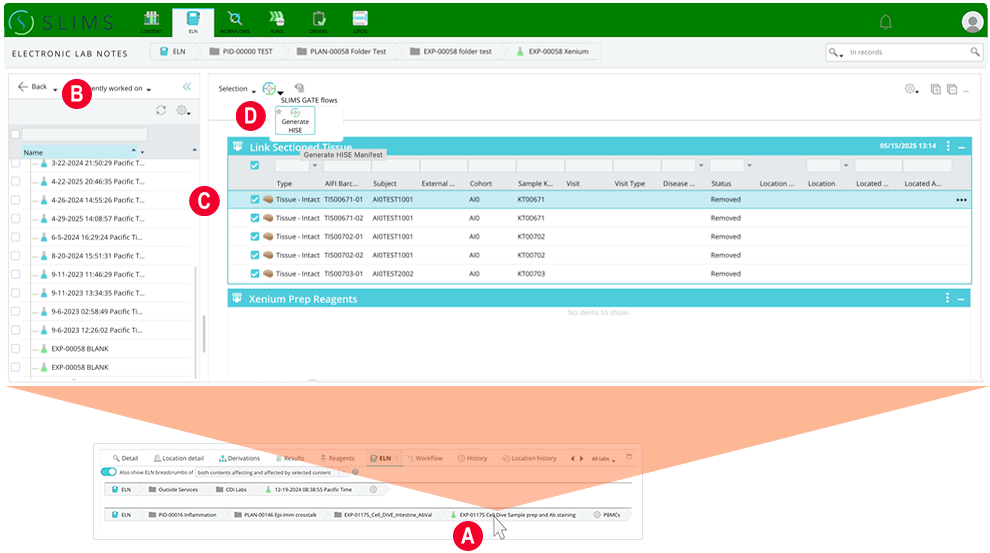
In the ELN section, follow the instructions below.
A. Select the content you want to work with.
B. An ELN notebook opens.
C. Select the block with your content.
D. Click the compass icon.
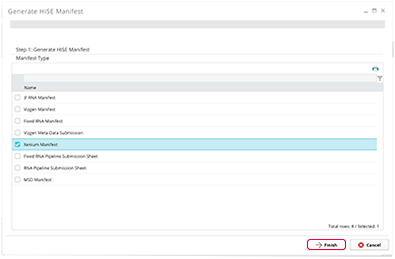
In the Generate HISE Manifest box, choose the type of manifest best suited to your project. (To create a
manifest.csvin SLIMS, you must be using a Simplified ELN experiment.)In the lower-left corner, click Finish.
 Create a tar file and ingest it into a watchfolder
After you create a manifest file, tar up the manifest with the files themselves. For instructions, see Step 2 of Ingest Data into the Project Store (Tutorial). When you drop the tar file into the watchfolder, HISE untars the files and uploads the data to the Project Store that's linked to the watchfolder. HISE also associates those files with the samples and file types declared in the manifest.
Option 2: Use the Project Store UI to Attach Metadata
The first method of adding metadata is to attach it at ingest (see Option 1). The second method is to attach the metadata later, after some experimentation. To use this latter method, follow the instructions below.
Instructions
Choose your account and project
Navigate to HISE, and use your organizational email address to sign in.
To see the account you're working on, check the upper-right corner in HISE. If it's not the right account, switch to the correct one. For instructions, see Switch Your Account and Projects (Tutorial).
Add metadata
Click your email address, and from the drop-down menu, select Project Stores.
On the Project Stores screen, in the Project column, click the name of the project you're working with.
To include all files in the watchfolder, select the checkbox at the top of the far-left column. Alternatively, select only the files you want to include.
In the upper-right corner of your screen, click Add file metadata.

In the Add file metadata dialog box, use the arrows to select the File type, Sample kit GUID, and Batch ID, as shown in the following image.
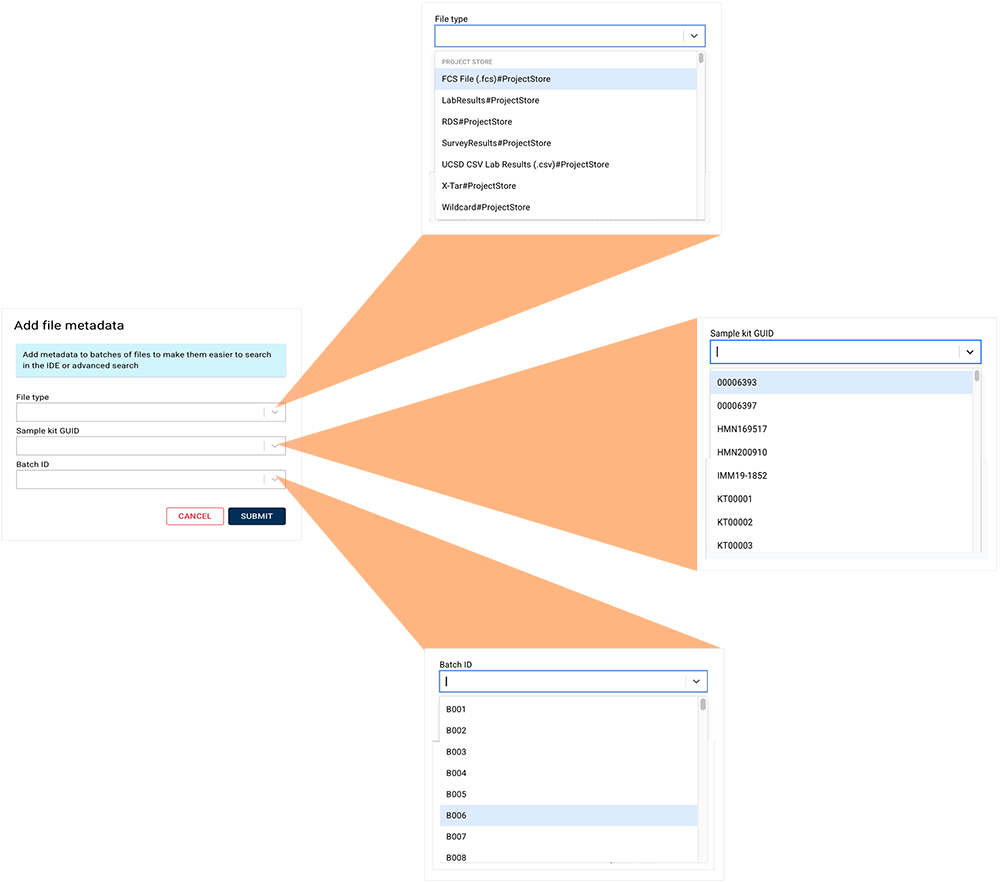
Click Submit.

 Related Resources
Create, Edit, or Delete Metadata