Use Watchfolders to Ingest Data (Tutorial)

Last modified 2025-10-14

Support

Use Watchfolders to Ingest Data (Tutorial)

At a Glance

This document shows you how to use watchfolders to ingest lab results, survey data, or EMR data into HISE. To request watchfolder setup or modification, contact Support.

From your laptop, you can use supported tools like gsutil or gcloud storage to stage files in your private folder:
gsutil cp /path/to/local/file_to_copy gs://ORG-billing-bucket/path/to/file_to_copy

If you have access to another cloud storage bucket, such as a collaborator’s shared bucket, you can copy files from there into the bucket for your private folder:
gsutil cp gs://OTHER_BUCKET/path/to/file_to_copy gs://ORG-billing-bucket/path/to/file_to_copy

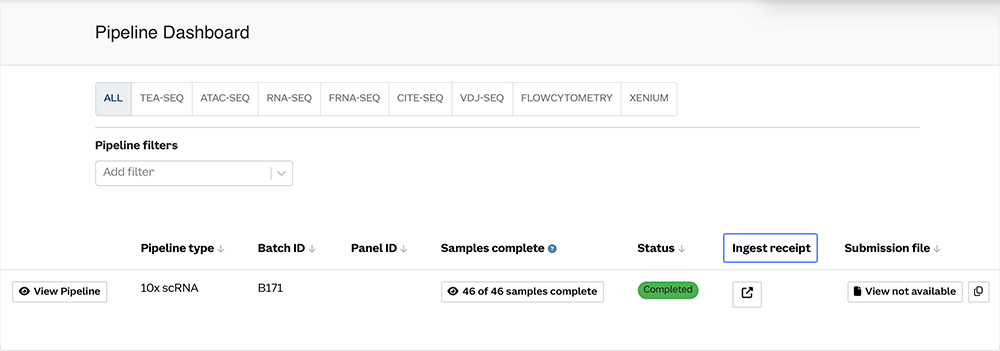
Then use gsutil cp to copy the files from the bucket for your private folder into your project’s watchfolder bucket to start ingest. After you copy the files, open the Project Store in HISE to confirm that ingest has started and to monitor progress. You can also search for your files within your study (Collaboration Space > [Your Study] > FILES), or check their status at Data Processing > Ingest Receipts. For step-by-step instructions, including how to easily find your private folder bucket name and optionally mount the bucket using Cloud Storage FUSE, see Get Direct Access to Your Private Folder (Tutorial) .


NOTE: When storing or copying data into a private folder, be sure to observe the access restrictions that apply to the selected files and datasets.

File Format

Label your ingestion files with the correct file type, such as `LabResults`, `TestResults`, or `clinical_labs`. If your files are not labeled or the label doesn't match the file type, a Dismiss error appears on the ingest receipt. 

You can create multiple file types (for example, `SurveyResults`) containing different content types. The regex should include a filename. See the following table for examples, and refer to the boxed instructions to test your filename.

File content

CSV filename

Regex

Lab results

`clinical_data` or `clinical_labs` or `labresults`

`(?i)(.*((lab|test)results).*)|(.*((clinical)\_(labs|data)).*)|(.*(clinicaldata).*).csv`

Survey data

`survey_data`, `survey_results`, or `surveyresults`

 `(?i)(.*((survey)results).*)|(.*((survey)\_(survey|data)).*)|(.*(surveydata).*).csv`

EMR data

`emr_data` or `emrdata`

`(?i)(.*(emrdata).*)|(.*((emr)\_(data)).*).csv`

Test Your Filename

1. In the upper-right corner of your screen, click your name.

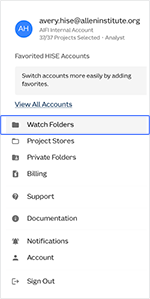
2. Click Watch Folders.

3. Click the file type you plan to upload, such as OctetStream Lab Results (.csv).

4. Paste your proposed filename into the box, and press Enter

If your regex is properly constructed for the selected file type, a green X appears to the right of text entry field, and a link to the watchfolder appears below it. If the format is not correct, a red X appears.

Human Metadata Ingestion

Files associated with human metadata, such as data from study cohorts, require special handling to protect patients' privacy. All ingested data must be de-identified and free of PHI. To prepare your files for ingestion, follow the instructions in the relevant section below. Then proceed to the general instructions. 

Lab results

Create the necessary file type, and include the correct filename (`clinical_data` or `clinical_labs` or `labresults`) in the regex (See "File Format," above). 

EMR data

Create the necessary file type, and include the correct filename (`emr_data` or `emrdata`) in the regex.

Survey data

1. Create the necessary file type, and include the correct filename (`survey_data`, `survey_results`, or `surveyresults`) in the regex.

2. To upload metadata files, HISE must have knowledge of a matching data dictionary. Export the `SurveyDesign` from the REDCap Data Dictionary. The name of a new survey design should be part of the name of the file to be ingested. For example, if the filename is `10265Cohort1-AllQuestionnaires_DATA_2021-03-18_0927.csv`, the survey design name could be `Cohort1`.

3. If you use the Design Version Create Survey Design modal, the survey design should also be included in the ingest filename. For example, if the filename is `10265Cohort1-AllQuestionnaires_DATA_2025-03-18_0927.csv`, the design version could be `10265` or `2025-03`.

4. For the survey design scheme itself, identify the headers of the file to be ingested (Subject and Visit Name columns) OR (Sample Kit GUID column). Then search for variable name or .csv headers of interest. For example, for FH the variable name of a subject is `al_id`. Use the far-right column to add the variable name as a custom identifier. The variable name corresponds to the key in the key/value pair in the sample's EMR data.

5. If the header you want doesn't exist, click Add Survey Design Scheme Row. For example, let's say an FH user wants a Visit Name header in the ingested .csv, but that header doesn't exist in the Survey Design Scheme. The user would add the header as the variable name (`AI Study time point`), add `Visit Name` as its identifier, and then click Add Row.


Instructions

For special preparation of files containing human metadata, see the preceding section and consult your organization's data privacy policy or legal representative. 

To upload properly prepared files of any kind, with or without human metadata, follow the process outlined below. If your data upload requires an automated process, contact Support to discuss the options. 

1. To upload data to a watchfolder, navigate to HISE and use your organizational email address to sign in.

2. In the upper-right corner, click your name, and choose Environment from the drop-down menu.

3. On the Configure HISE Environment screen, stay on the Accounts tab, and click the drop-down menu next to Available Accounts. From the list in the Available Projects section, choose the account(s) you want to work with.

4. Near the upper-left corner of your screen, click the arrow to move to the Account screen, and then click Watch Folders.

5. Choose the watchfolder for your account and project.
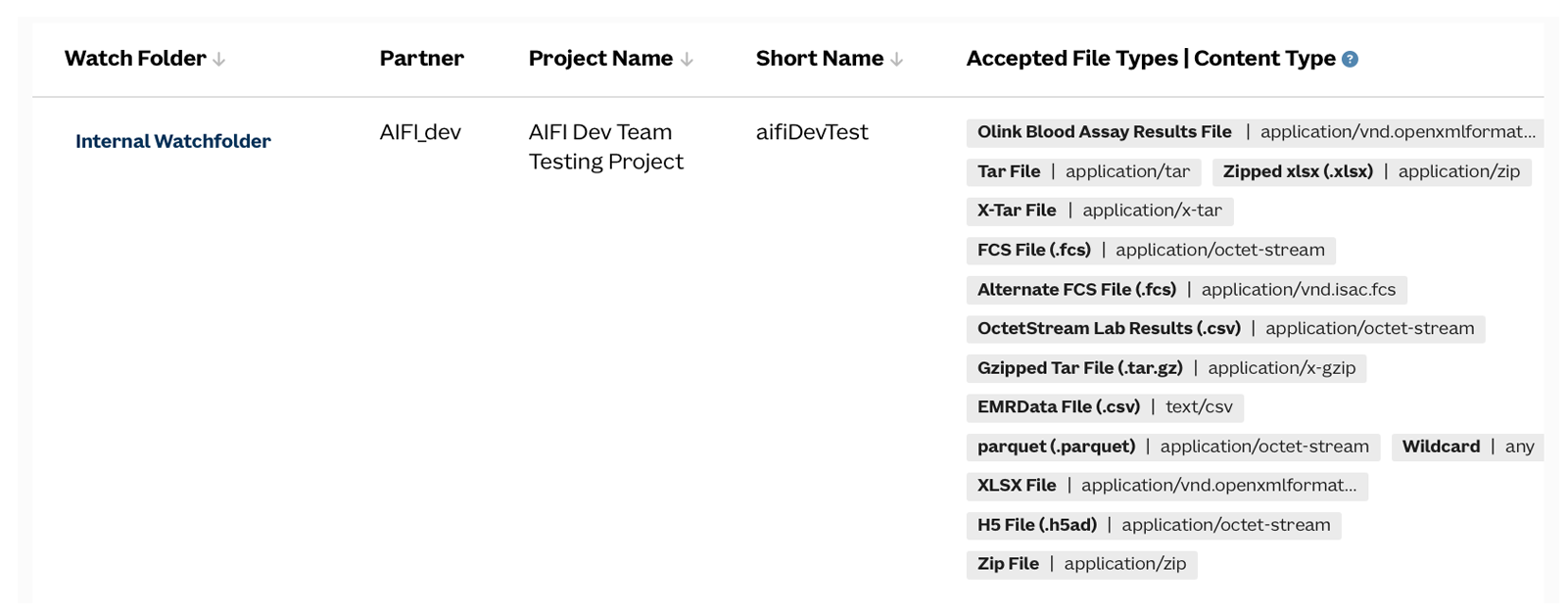
On the Watchfolders screen, the far-right column, Accepted File Types/Content Type, shows which file formats the watchfolder accepts. If the file type you want to use isn't listed, contact Support to ask that your file type be added.

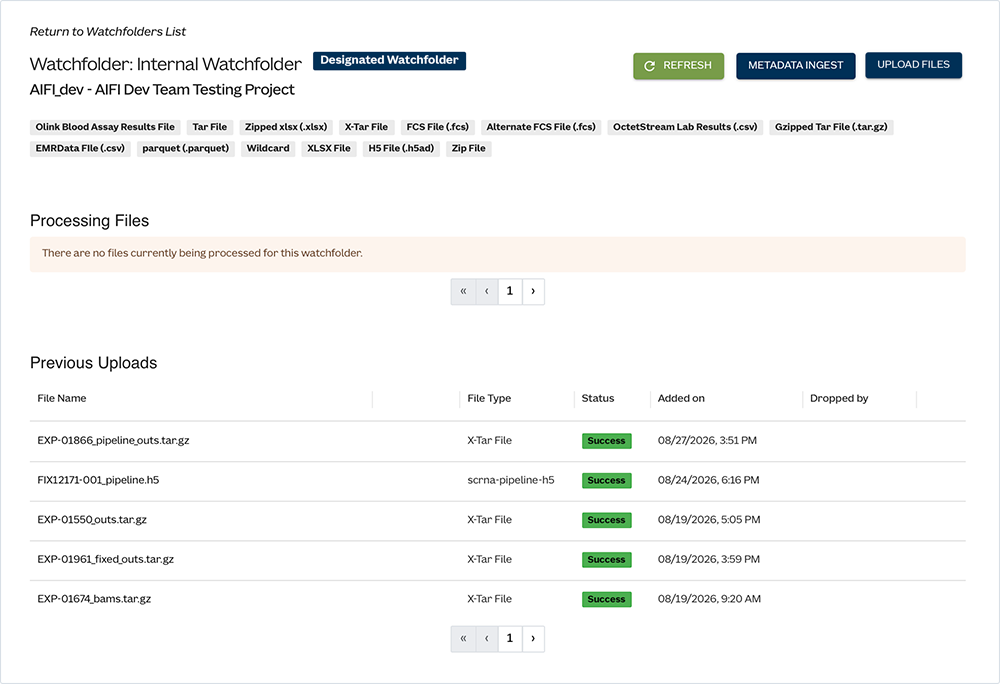
6. The Project Store opens. Click UPLOAD FILES, or drag and drop your files into the watchfolder. Alternatively, if you’ve staged files in your private folder, move those files into the watchfolder.

Note that files in Google Drive, such as .csv files created in Google Sheets, can't be uploaded directly to your watchfolder or dragged into it. Download the files first, and then upload them from your Downloads folder.

7. To see the status of your uploaded files, from the top navigation menu, click Data Processing, and choose Ingest Receipts from the drop-down menu.

A. In the Status column, a Success tag means that the file was ingested.

B. A Dismiss error means that the file regex is not formatted correctly. 


C. A Failure error means that there was some other problem uploading the file. Try again, and if the issue persists, contact Support


Related Resources

Understand Watchfolders and Project Store

Ingest Data into the Project Store (Tutorial)