
Submit and Monitor Pipeline Batches (Tutorial)
Last updated 2026-08-26At a Glance
To ensure efficient resource allocation and reliable, reproducible results, it's important to follow established procedures for batch submission and processing. This tutorial outlines those procedures and shows you how to retrieve results and troubleshoot issues.
Instructions
 Find and open the correct watchfolder
Navigate to HISE, and use your organizational email address to sign in.
Use your account favorites menu to see if you're already in the right account. If not, see Switch Your Account or Projects (Tutorial) for instructions on choosing a different account.
In the upper-right corner, click your email address, and select Watch Folders from the drop-down list.
Find the watchfolder you want to work with, and click its name.
A cloud storage bucket opens. Upload all required batch files to this folder.
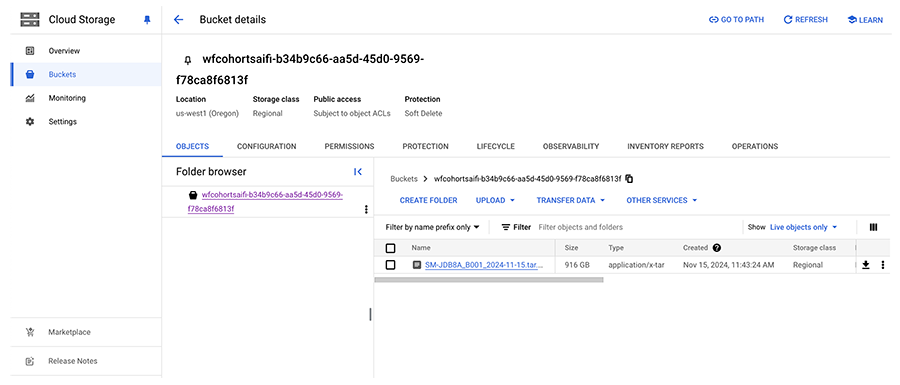
 Submit a batch
Upload a submission sheet to the watchfolder.
Confirm that the file name syntax matches the current naming convention for your batch’s sequencing type. For examples and instructions, see Use Correct Pipeline File Syntax (Tutorial).
NOTE
Inaccurate syntax can cause errors during pipeline runs. For details, see Use Correct Pipeline File Syntax (Tutorial). The submission sheet requires standardized syntax, especially in the Type column of the header sheet. Be sure to double-check the placement of spaces. A sample submission sheet is shown below.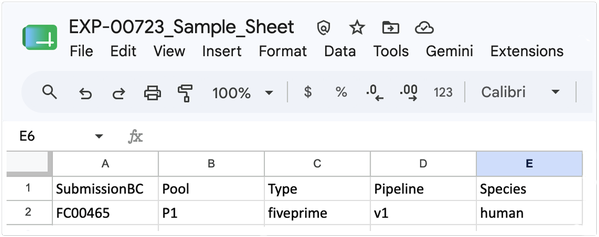
3. In the watchfolder you selected, go to UPLOAD > Upload Files.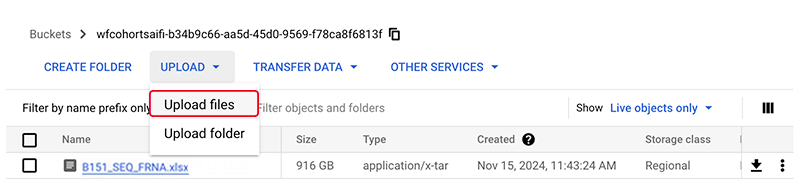
(Optional) Alternatively, drag your file into the selected watchfolder.

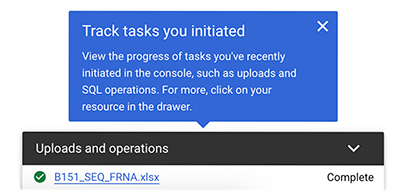
To view your uploaded file data, click Uploads and operations in the lower-right corner of your screen.
(Optional) Resubmit your submission sheet (to correct an error, for example):
A. To request deletion of the original sheet, contact Support.
B. To submit your corrected sheet to the watchfolder, follow the process outlined above.
 Submit a tar file
Before you begin, install the Google Cloud CLI. As you prepare your tar file, be sure to follow the required syntax.
In your terminal, enter the following command:
gsutil cp gs://yourBucketName/YourFileName gs://WatchfolderBucket
This command copies data from the source cloud storage bucket to the destination bucket without first downloading the data locally.Save your tar file to your local machine, and upload the file to your watchfolder, as described in 2.3 (above).
 . Use the pipeline dashboard to monitor your batch
In the pipeline dashboard, you can view the status of each process in the pipeline run, find input/output files, and review error logs if problems occur. When a pipeline run is complete, or if a process fails, you're notified by email.
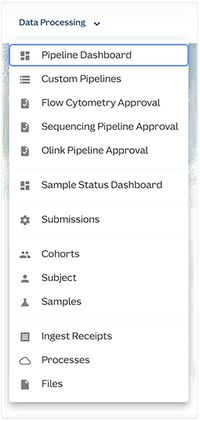
To view the dashboard, go to the main navigation menu in HISE, and select Data Processing > Pipeline dashboard.
To filter by Pipeline type, Batch ID, Panel ID, Samples complete, Status, Ingest receipt, Submission file, Project ID, or Audit info, use the dashboard tabs.
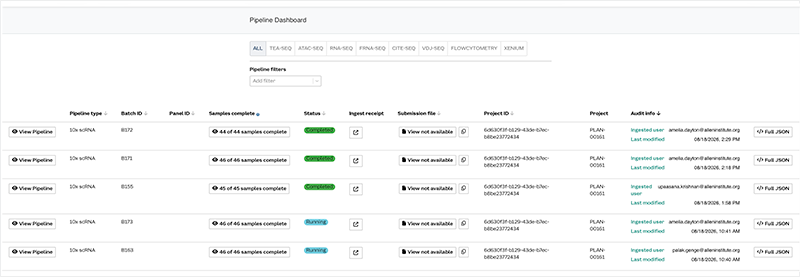
To make sure your file was uploaded correctly, click Ingest receipt. An example is shown below.

To see the details of each process in your batch’s pipeline run (as shown in the following image), click View Pipeline in the far left column of the dashboard.
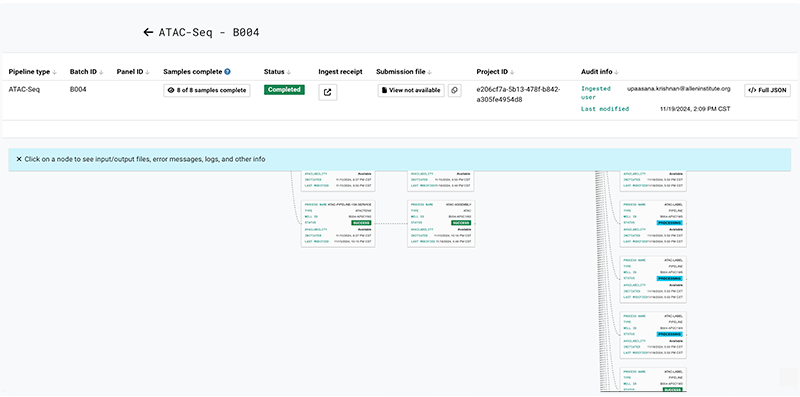
Click to expand any node, and click View logs or </> Full JSON to see the complete logs or the entire block of JSON code, respectively.
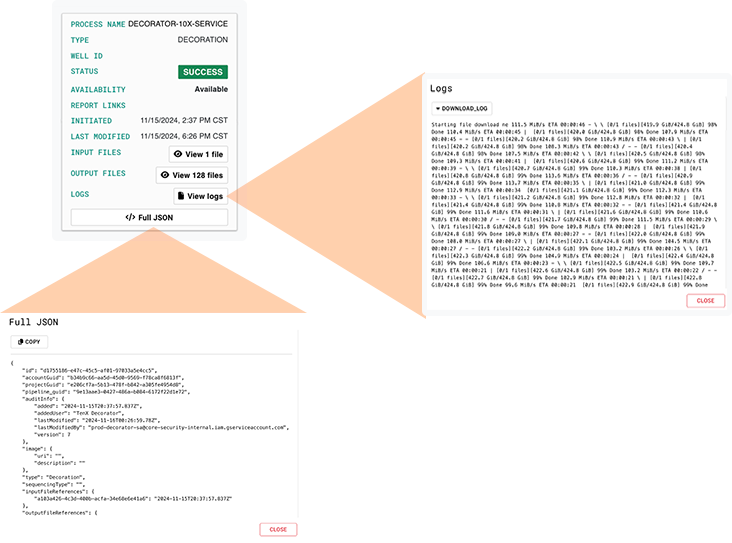
(Optional) To retry a failed pipeline process, click Status > Retry pipeline.
(Optional) Review the quality control report for a given pipeline:
A. Go to Data Processing > Processes > [Process name].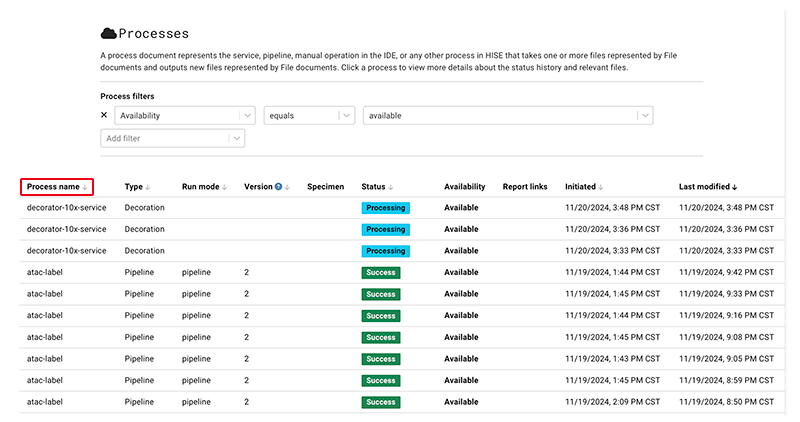
B. On the Processes > [Process name] page, in the Report links column, click the QC report for the process you want to view.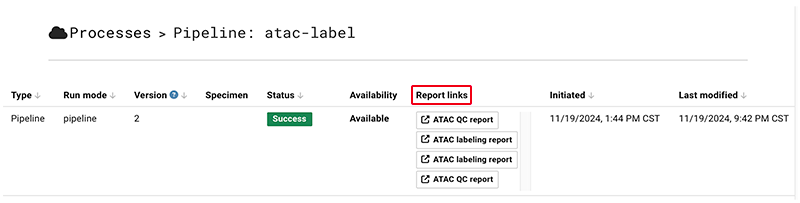
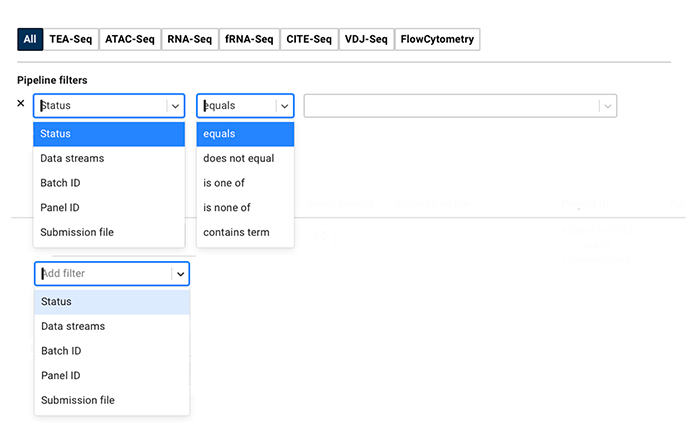
To find your batch in the dashboard, use the filters and boolean options, or add your own filter.
 View pipeline result files
When a run is complete, you can perform an advanced search to access the results files.
From the main navigation menu in HISE, select Research > Advanced Search.
The most common filter for result files is
batchId.To use thebatchIdfilter, open the Sample Metadata menu. For details, see Use Advanced Search (Tutorial).
 Rerun a batch
From the main navigation menu in HISE, go to Data Processing > Sequencing pipeline approval.
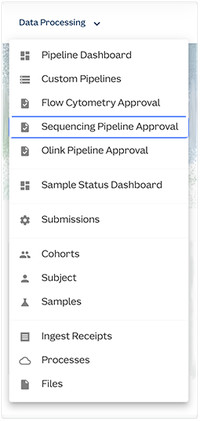
On the Sequencing Approval page, in the Submission ID column, click the submission ID for your batch.
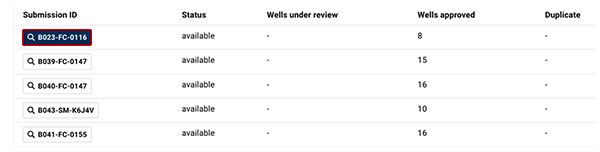
Click Flag as duplicate. This process can take some time. We recommend you wait at least 10 minutes to avoid errors that occur when a batch is rerun without the flag in place.

Rename your tar file, which gives the file a new timestamp, and return your project watchfolder to upload the file. If you don't rename the file, it'll be rejected as a duplicate upload.
 Troubleshoot process failures
If a process fails, follow the instructions below to debug the error.
Review the process logs to pinpoint where the process failed (see Step 3B, above). Note any errors in the R/Python code.
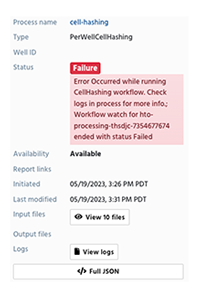
If you can't troubleshoot the error, or if the logs are blank, contact Support for further assistance.
Related Resources
Configure a Pipeline (Tutorial)
Understand Automated Pipelines
Use Watchfolders to Ingest Data (Tutorial)