Last modified 2026-03-02 |
Use Fast Mode (Tutorial)
 | Abbreviations Key |
| CertPro | Certificate of Reproducibility |
| HISE | Human Immune System Explorer |
| IDE | integrated development environment |
| SDK | software development kit |
At a Glance
Fast mode is designed for users who want to upload results regularly during an analysis without waiting for a full reproducibility package to build each time. When fast mode is enabled, HISE skips building a full environment snapshot up front and instead stores a lightweight blueprint (a conda.yaml file), so that the full environment can be reconstructed later. To avoid waiting on full packaging every time, use fast mode for progressive saves, and then switch to the complete, slower packaging mode to create a final version of the analysis for your Certificate of Reproducibility (CertPro). For details, see Use the Upload Files SDK Method (Tutorial). If you have questions, contact Support.
| In fast mode, HISE records only a lightweight YAML representation of your environment, rather than storing a complete set of components. This speeds up saves but can compromise reproducibility. Because the actual dependencies and base images aren’t captured, they might change or become unavailable by the time you rebuild the full stack. Fast mode, then, is ideal for quick iteration and exploratory uploads, but when you're ready to prepare reproducible work for publication, we highly recommend that you disable fast mode and create a comprehensive image of your environment. |
Description
Fast mode is an optional setting you can turn on when using the HISE SDK upload_files (Python) / uploadFiles (R) method to save results to a study faster, especially for frequent, intermediate uploads. When you set use_fast_mode / useFastMode = True/TRUE, HISE still saves your output files, notebook, and IDE configuration, and makes your files searchable and reusable in studies, but defers the heavy environment packaging step that normally slows the pace of your uploads.
|
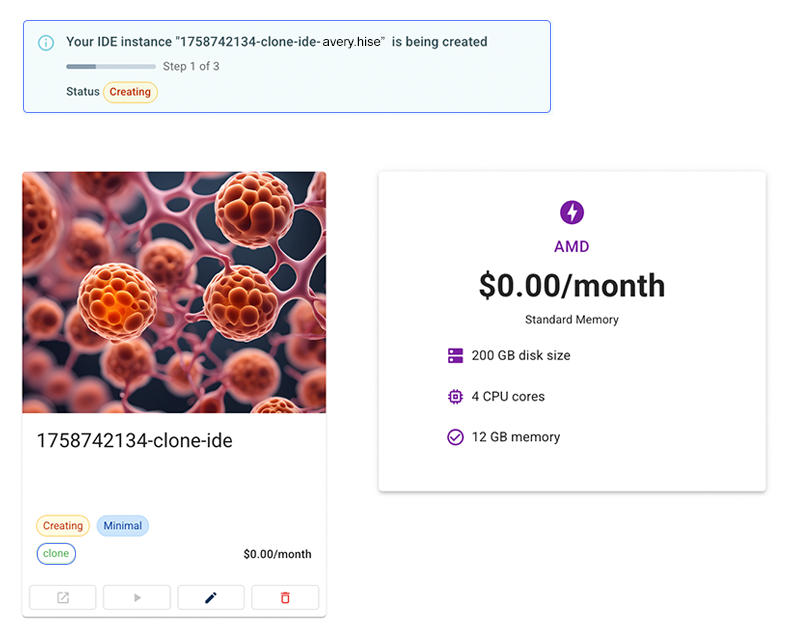
Cloning in Fast ModeIDEs uploaded using fast mode still clone correctly, but cloning takes longer because the previously skipped build time shifts to the cloning stage. Behind the scenes, HISE tracks whether a given IDE or certificate run used fast mode so that the cloning experience can adapt accordingly. When you or a collaborator clones a fast‑mode IDE (including from a Certificate of Reproducibility), HISE automatically uses the stored As the clone builds, you can track its progress in HISE, as shown in the accompanying image. In the top navigation bar, click RESEARCH, and select IDEs from the drop-down menu. Then click the card for your study to see a status message similar to the one here.
You can also check the banner, list view, and workflow details view to monitor your upload files workflow. For details, see Work with Studies (Tutorial). |

Comparison of regular mode vs. fast mode
In regular mode (non–fast mode), upload_files() (Python) | uploadFiles() (R) builds and stores a complete package of your environment so that anyone can later recreate an identical analysis configuration. This process is ideal for final, publication-ready work that you expect to certify for reproducibility, but it can add substantial time to each call. For that reason, some users prefer to run it only late in the project.
With fast mode enabled, HISE replaces that full environment package with a saved environment recipe (conda.yaml) that describes the libraries and versions used. When someone later clones or replicates the IDE from your study or certificate, HISE uses this recipe to build the full environment package at that later point, which can take a while and might occasionally fail.
Because fast mode delays the heavy lifting, you trade some reproducibility guarantees for speed and convenience. If libraries or base images change by the time the environment is rebuilt, the cloned IDE might not match your original environment perfectly, even though HISE recorded your initial setup. As a result, fast mode works best for exploratory and intermediate uploads. For final, publication-ready work, turn off fast mode so that a comprehensive snapshot of your environment can be created.
Instructions
Turn on
Turn on fast mode when you want much shorter upload times and are okay with the extra time it will take to clone an IDE later.
 Turn on fast mode
hp.upload_files (
input_paths=["results/file1.csv", "results/file2.csv"],
input_sample_ids=["SAMPLE_001", "SAMPLE_002"],
use_fast_mode=True,
)
uploadFiles (
input_paths = c("results/file1.csv", "results/file2.csv"),
input_sample_ids = c("SAMPLE_001", "SAMPLE_002"),
use_fast_mode = TRUE
)
Turn off
Turn off fast mode when you prefer that the environment build take place during the original upload. It will slow your upload speed, but subsequent clones will be faster.
Turn off fast mode
hp.upload_files (
input_paths=["results/file1.csv", "results/file2.csv"],
input_sample_ids=["SAMPLE_001", "SAMPLE_002"],
use_fast_mode=False,
)
Turn off fast mode
uploadFiles (
input_paths = c("results/file1.csv", "results/file2.csv"),
input_sample_ids = c("SAMPLE_001", "SAMPLE_002"),
use_fast_mode = FALSE
)
 Related Resources
Use HISE SDK Methods and Get Help