
View Your Upload Files Workflow (Tutorial)
Last updated 2026-08-26At a Glance
The upload files workflow gives you a visual, study‑scoped view of every upload_files (Python) | uploadFiles (R) call, so you can monitor upload progress, review status, and inspect logs. This workflow view is especially helpful when using Fast Mode, but it appears with every upload files call. For details, see Use the Upload Files SDK Method (Tutorial).
When to Use This Feature
When you need detailed information on the status of a call, the upload files workflow UI includes a banner, list view, and workflow details view. Together, these components describe the status of each upload files call for a given study. Get an overall snapshot of your calls, or drill down as far as you like on a call of particular interest.
Instructions
View the IDE Instances banner
Sign in to HISE, go to the COLLABORATION SPACE, and click the card that represents your study.
From the side navigation menu, click IDE Instances.

A. To update the count and display the time elapsed since the last refresh (without retrying the call), click REFRESH.
B. To open the full upload files workflow list view for the specified study, click VIEW ALL CALLS. This view shows all upload files calls associated with the study, including each call’s status, created and last‑modified timestamps, and the user or service that made the changes.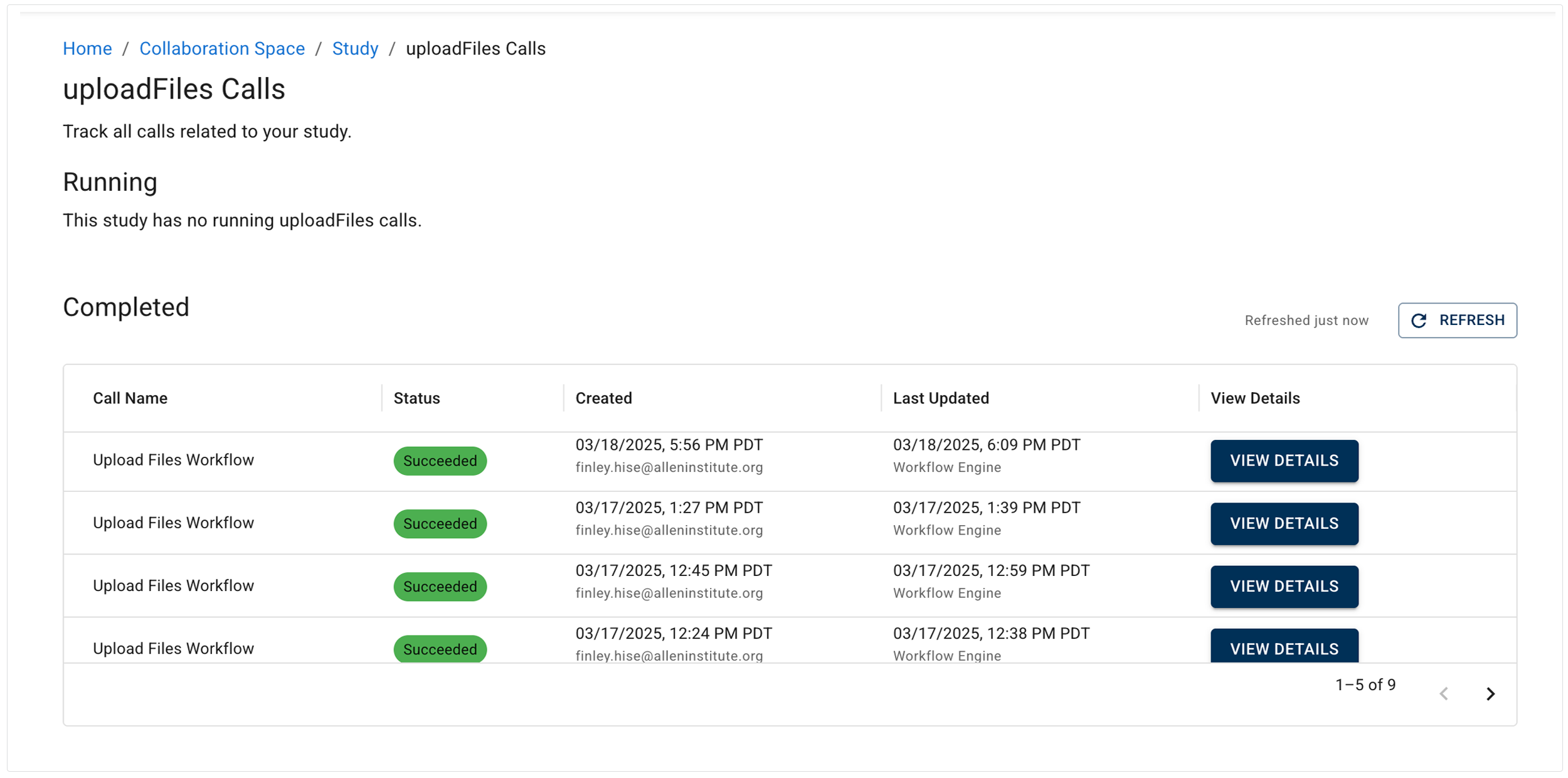
C. To open the workflow details for a specific call, click VIEW DETAILS. This graphic format reveals immediately if your workflow is blocked or if it's complete. It also shows when each upload files call was added and last modified, along with the responsible user or service.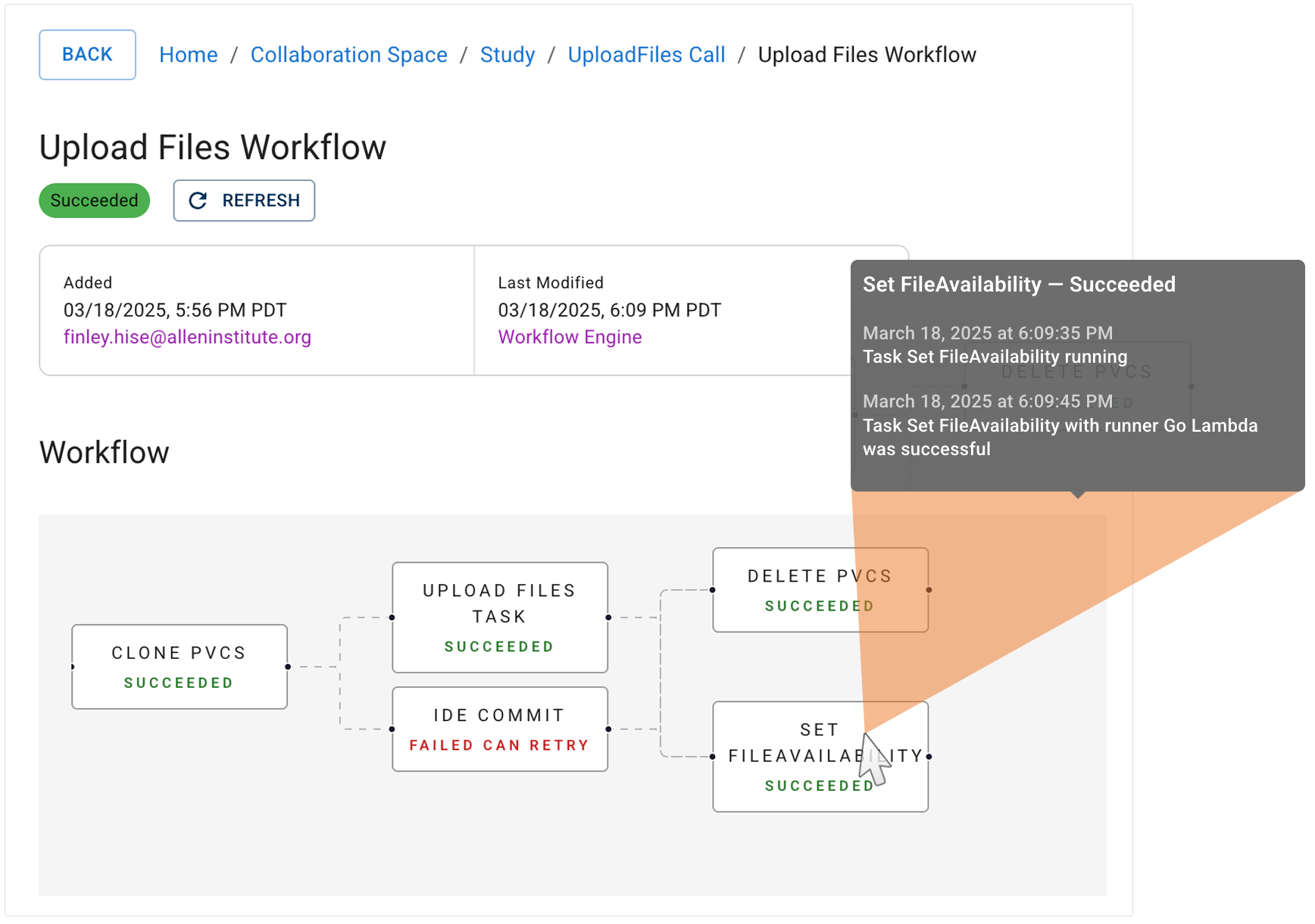
D. To see associated subtasks, hover over a node (see inset). These logs have human‑readable timestamps and display the name of the service that executed each subtask. Use this additional context to debug issues or verify expected behavior.