
Use Advanced Search for Basic Queries (Tutorial)
Last updated 2026-07-14At a Glance
Advanced Search lets you define the subjects, file types, or studies you want to find in HISE. With this powerful feature, you can create queries and filter result files by file, sample, EMR metadata, or public files. You can use your results to create a new file set, add to an existing set, send the data to an IDE for further inspection, or (in some cases) visualize your results. This document explains how to create, save, and share basic queries, as well as how to use your search results.
NOTE
The results window for FILES searches now includes a Sample References column. This column lets you see how many samples in a file match your current search filters, so you can assess a file's relevance before deciding whether to include it in your results. For details, see Use Advanced Filters for Complex Search Queries (Tutorial).
For further instructions on executing Advanced Search queries, see the Related Resources at the bottom of this page. If you have questions or need help, contact Support.
When to Use This Feature
Advanced Search is the gateway to finding and accessing all your research output, including data files and human metadata:
Find specific output files and reports produced by the various assay data analysis pipelines configured for your project
Inspect the output of an analysis for a number of samples at the same time
Locate specific files within a project folder
NOTE
If you can't find the files you want, it's likely they're in a different account or project. To see which account is currently selected, how many available projects are selected, and how many IDEs are active, check the account access overview below your email address in the upper-right corner in HISE. To quickly switch to a different account, select it from your favorited HISE accounts in the main navigation menu. To choose different projects within your current account, click [Your email address] > View All Accounts > Select Projects. For details, see Switch Your Account and Projects (Tutorial).
Instructions
To start with a new query, navigate to HISE, sign in , and select a search type. To start a new query, select a tab below. To begin with a saved or shared query, see Reuse, Save, or Share an Advanced Search Query (Tutorial) .
FILES search
To search by file attributes, stay on the default FILES tab.

To use this filter, you must choose at least one project and at least one file type.
A. In the Projects field, click the arrow to open the drop-down list, and select one or more projects. Alternatively, to select all available projects, click ADD ALL.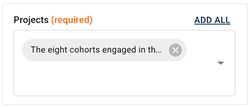
B. In the File type field, click the arrow to open the drop-down list, and select one or more file types.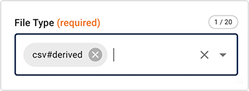
(Optional) In the Advanced Filters field, type a filter name, or click the arrow to open the drop-down list. (For a complete list of filters and instructions on using them, see Use Advanced Filters for Complex Search Queries (Tutorial) .)
In some cases, no advanced filters are available.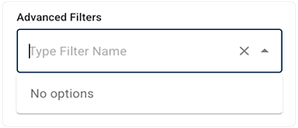
A. Check your results in the results window at right. Click the checkboxes to select the results you want, or click SELECT ALL ITEMS.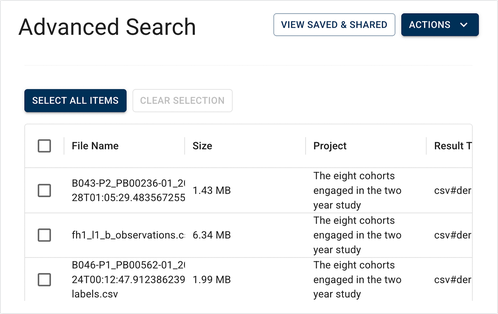
B. From the floating menu, choose ADD TO FILE SET, CREATE FILE SET, GET UUIDS, or VISUALIZE (if available), depending on what you want to do next with the files.
SAMPLES search
To search by sample attributes, click the SAMPLES tab.
In the Projects field, click the arrow to open the drop-down list, and select one or more projects. Alternatively, to select all available projects, click ADD ALL.
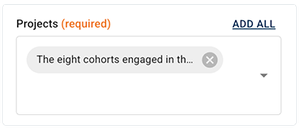
NOTE: If you select multiple projects, you might see duplicate results in the results window. This can happen, for example, when multiple surveys contain the same question.
(Optional) In the Advanced Filters field, type a filter name, or click the arrow to open the drop-down list. (For a complete list of filters and instructions on using them, see Use Advanced Filters for Complex Search Queries (Tutorial) .)
A. Here we chose Sample Kit GUID from the Sample Metadata filter group.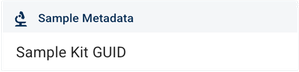
B. Choose an operator and a value. In this case, as shown in the image below, we choseequalsas the operator andKT02189as the value. Click APPLY.
C. Click the checkboxes to select the results you want to keep.
D. From the floating menu, choose ADD TO FILE SET, CREATE FILE SET, GET UUIDS, or VISUALIZE (if available), depending on what you want to do next with the files.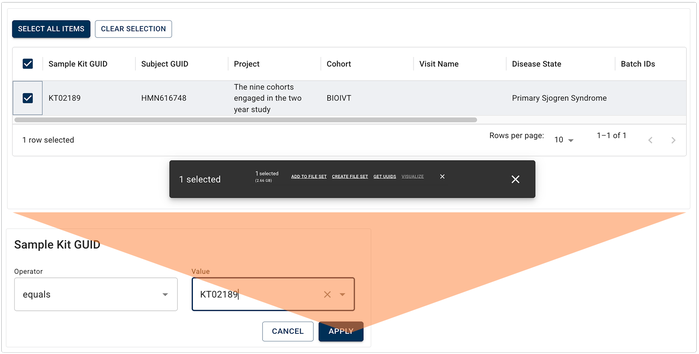
EMR data search
To search by subject attributes, click the EMR tab.
To use this search type, you must choose at least one project. In the Projects field, click the arrow to open the drop-down list, and select one or more projects. Alternatively, to select all available projects, click ADD ALL.
(Optional) In the Advanced Filters field, type a filter name, or click the arrow to open the drop-down list.
A. Here we chose Subject ID from the Subject Metadata filter group. (For a complete list of filters and instructions on using them, see Use Advanced Filters for Complex Search Queries (Tutorial) .)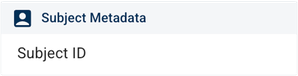
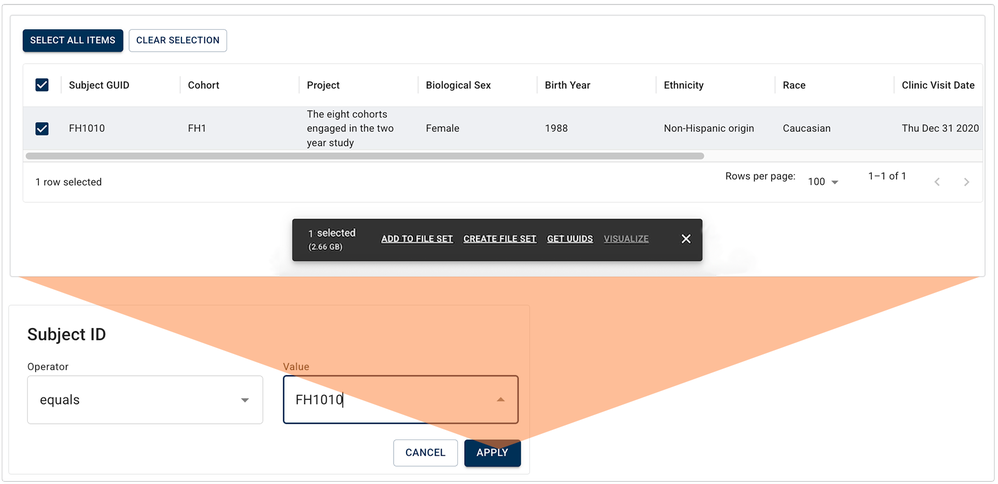
B. Choose an operator and a value. In this case, as shown in the image below (Step 3D), we choseequalsas the operator andFH1010as the value. Click APPLY.
C. To select the results you want to keep, click one or more checkboxes.
D. From the floating menu, click ADD TO FILE SET, CREATE FILE SET, GET UUIDS, or VISUALIZE (if available), depending on what you want to do next with the files.
PUBLIC FILES search
To search public files, click the PUBLIC FILES tab.
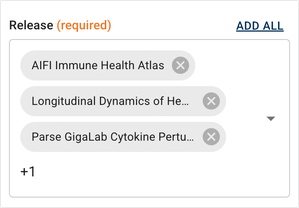
To use this search type, you must choose a release. From the drop-down list, select the Data App or publication associated with the data you want to find. To choose all available releases, choose ADD ALL.
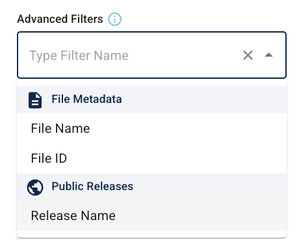
(Optional) In the Advanced Filters field, type a filter name, or click the arrow to open the drop-down list.
A. In the results window, click the checkboxes to select the results you want to keep.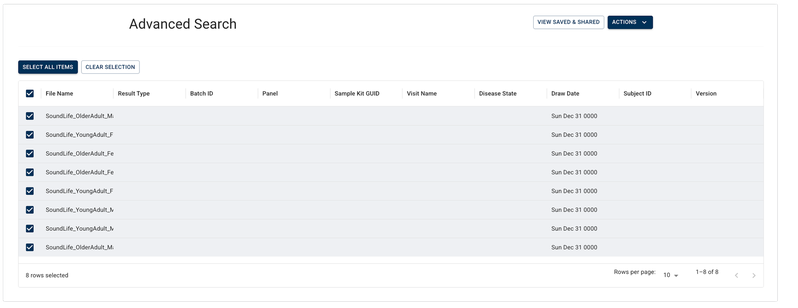
B. From the floating menu, click ADD TO FILE SET, CREATE FILE SET, GET UUIDS, or VISUALIZE (if available), depending on what you want to do next with the files.
Related Resources
Understand Advanced Search Concepts