
Last modified 2026-06-17 |
|
Work with File Sets (Tutorial)
At a Glance
This document explains how to create and download file sets in HISE. If you have questions or need help, contact Support.
NOTE
HISE automatically creates file sets from files uploaded through the SDK in an upload_files call unless you disable this behavior. If you prefer not to have file sets created automatically, set the no_file_set parameter to True when you call the upload_files (Python) | uploadFiles (R) SDK. The default is False. If not declared, a file set containing the uploaded files will be created in your study space. For details on file sets created in an IDE, see Use the Upload Files SDK Method (Tutorial).
When to Use This Feature
This document explains how to create and download file sets using your Advanced Search results:
Create a file set as a reuseable input that you and your collaborators can read into IDE sessions across multiple analyses.
Save a group of pipeline output files, such as QC reports or labeled scRNA-seq files.
Preserve specified data sets to maintain a coherent, traceable workflow.
Capture final data sets to support a publication.
Create file sets for AI/ML training runs.
Instructions
 Create a file set
To create a file set from the results of an advanced search, follow the instructions below.
1. Navigate to HISE, and use your organizational email address to sign in.
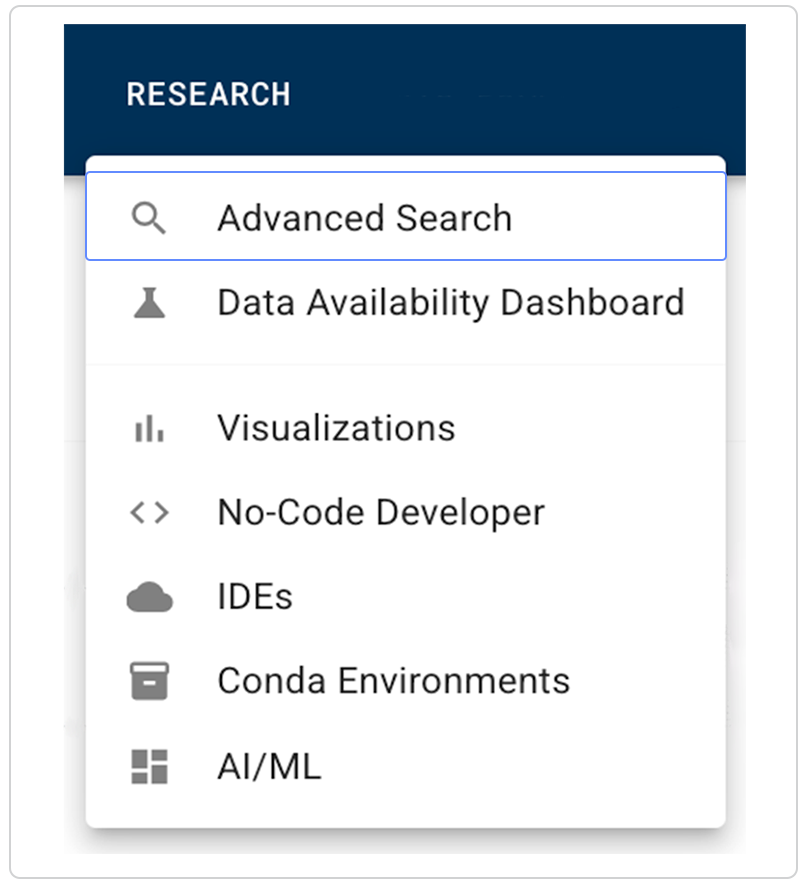
2. In the top navigation menu, click RESEARCH, and choose Advanced Search from the drop-down list.
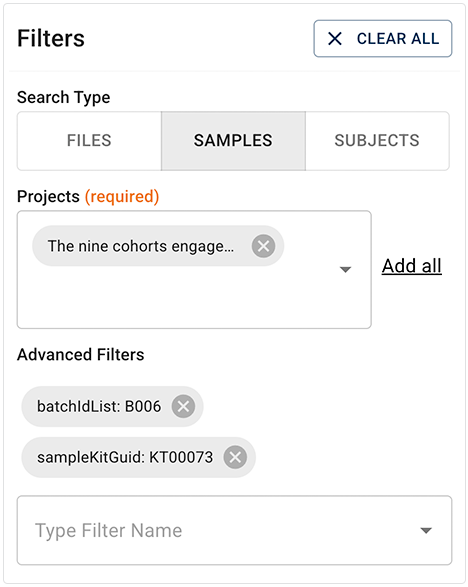
3. Create a query or use a saved query. For details, see Use Advanced Search for Basic Queries (Tutorial).
A. From the floating menu, choose CREATE FILE SET.

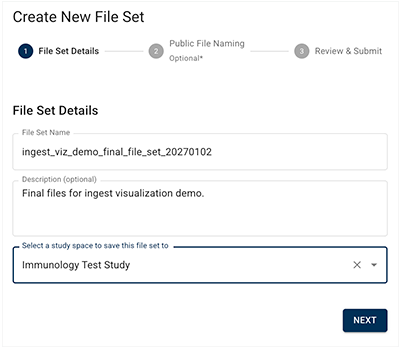
B. On the Create New File Set page, in the File Set Details dialog box, enter the requested information, and click NEXT.
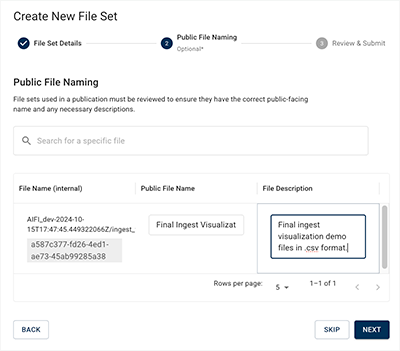
C. (Optional) On the Create New File Set page, in the Public File Naming dialog box, add a public-facing name for your file set, and click NEXT.
D. On the Create New File Set page, in the Review and Submit dialog box, review the details, and click CREATE FILE SET.
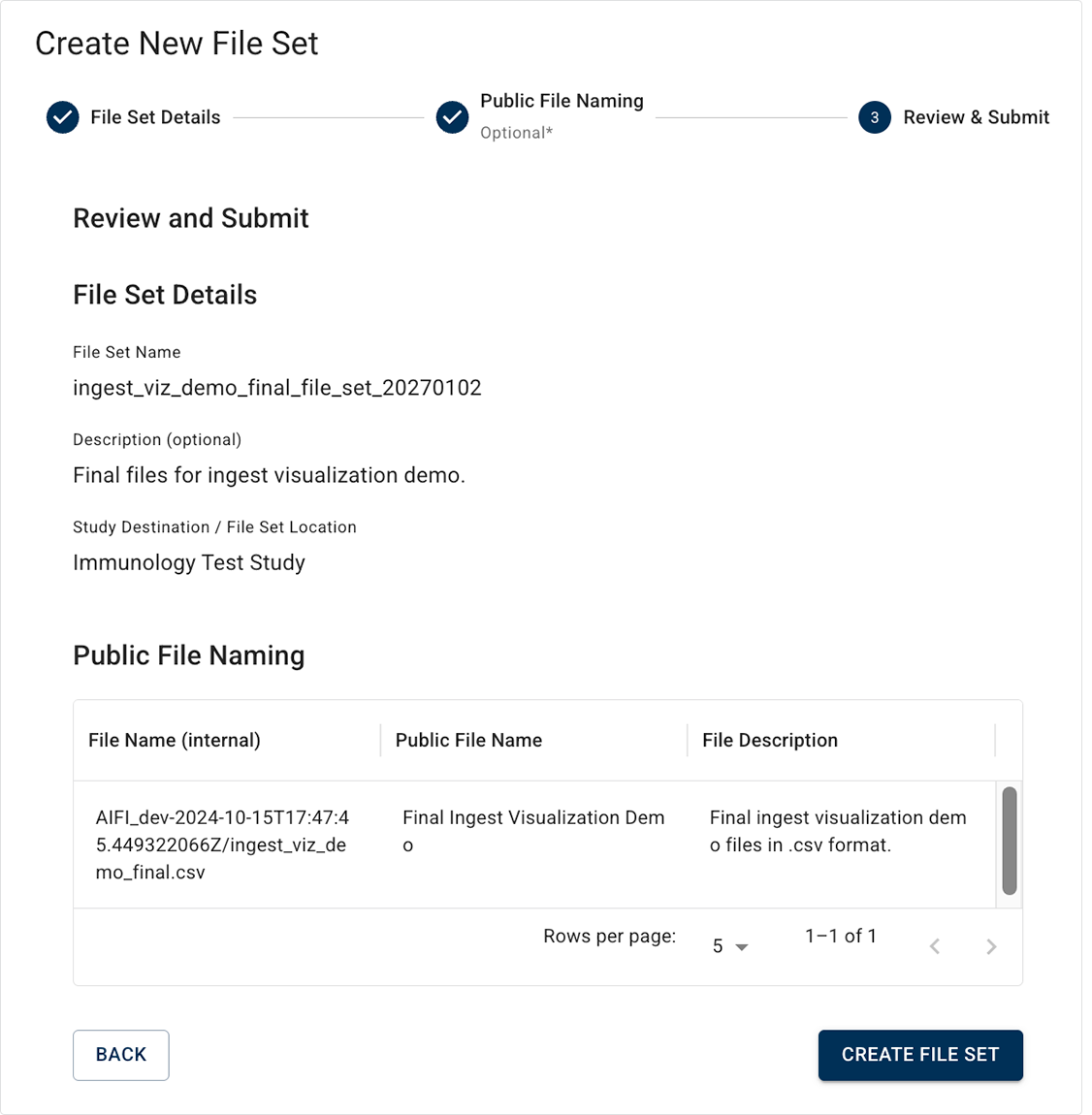
E. Review the confirmation message.

 Download a file set
You can share a file set for others to analyze or use as a starting point for their own research. To download a file set, follow the steps below.
1. Navigate to HISE, and use your organizational email address to sign in.
2. In the top navigation menu, click COLLABORATION SPACE.

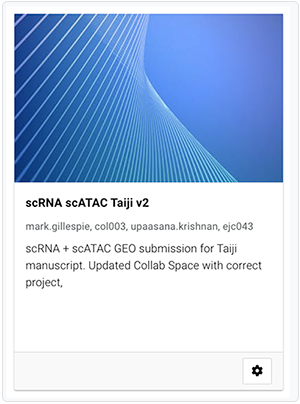
3. From the Your Studies section, choose the study that contains the file you want to download (in this case, scRNA scATAC Taiji v2).
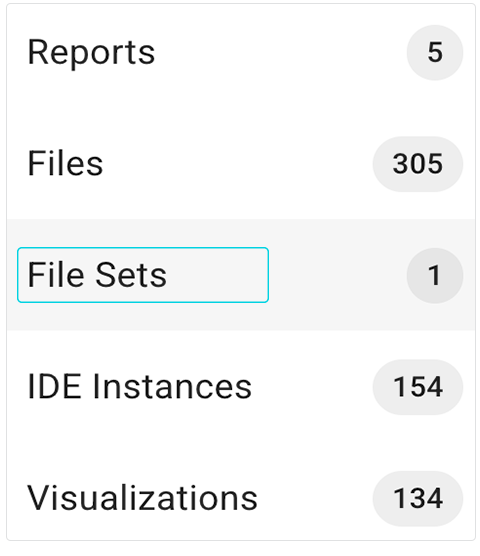
4. From the left navigation menu, click FILE SETS.
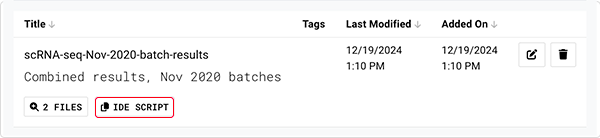
5. Find the file set that contains the file you want to download, and click IDE SCRIPT.
6. In the Load files in IDE dialog box, click COPY SCRIPT.
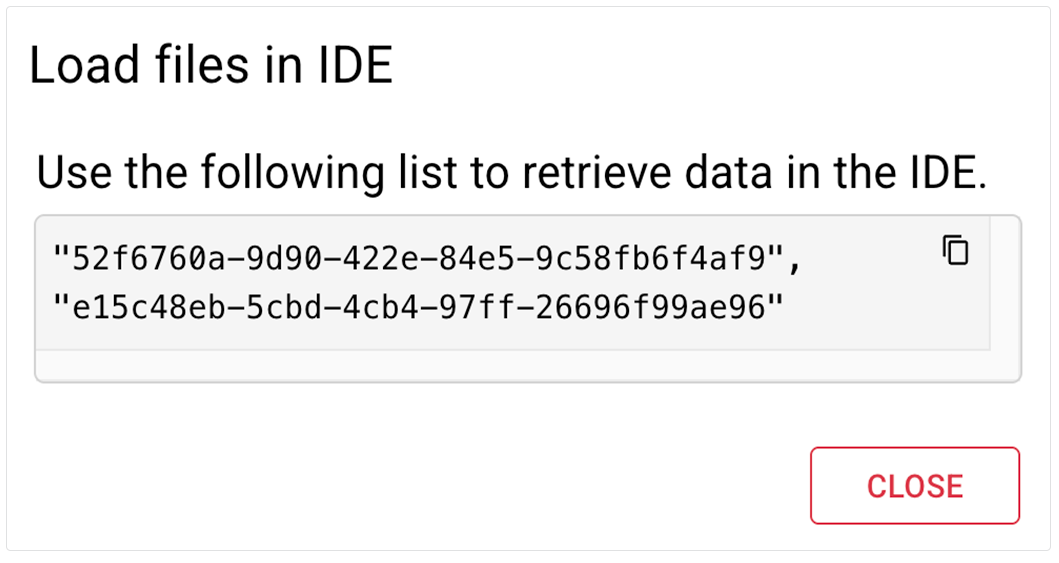
7. To open an IDE, navigate to RESEARCH > IDEs, and paste in the script you just copied. For details, see Create Your First HISE IDE (Tutorial).
 Related Resources
Create Your First HISE IDE (Tutorial)
Use Advanced Search for Basic Queries (Tutorial)
Use Advanced Filters for Complex Searches (Tutorial)