
Get Started with AI/ML Stacking (Tutorial)
Last updated 2026-05-26At a Glance
AI/ML stacking lets you arrange related AI/ML environments or training runs into ordered stacks that fit your workflow. Stacks highlight active layers, keep the relationships among the layers visible, and let you reorganize layers and stacks as you iterate on your research. To support reproducibility, the environment or training run stays intact even if you remove a layer or dissolve an entire stack.
In the AI/ML management hub, each collapsed stack displays the number of layers it contains (3 in this example). You can click the arrow to expand the stack, or click the ellipsis (...) to view actions like Move to a different stack or Remove from stack. Each layer includes the following details:
–Name
–Description of your choice (optional) (for example, a layer description or a list of collaborators)
–Last modified info (email of the person who made the change and the date of the change)
–Status (such as Available)
–Any tags applied when the environment or training run was created (inference, in this example)
–Top of Stack tag if applicable

For details on the HISE AI/ML workflow, see the links at the bottom of this page. If you have questions or need help, contact Support
.
When to Use This Feature
Use this feature to group related environments or training runs so that your workflow is organized and visible in one place (for example, you could create stacks representing data ingestion, training, evaluation, and deployment). Search and sort layers by name, date, or status to see, for instance, which runs have been submitted or deployed and which have failed. As your research evolves, rearrange the stacks as needed by adding, moving, or removing layers, or placing a new layer at the top of the stack. The underlying environments are preserved.
NOTE
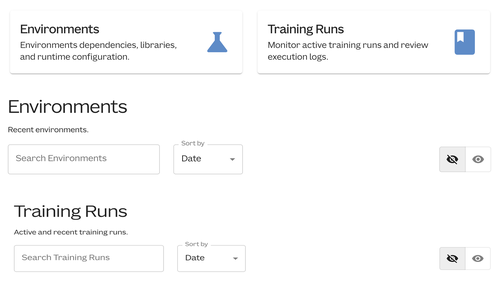
To create a stack, you must choose two or more environments or training runs. The instructions that follow refer to environments, but aside from the starting point (the Training Runs field instead of the Environments field), the steps to stack training runs are identical.
Instructions
Create a New Stack
When you want to group an AI/ML environment or training run with at least one other environment or training run, follow these steps:
From the top navigation in HISE, select Research > AI/ML.
In the Environments section (see the NOTE above about training runs), find the environment you want to use as the first layer in a stack.
Click the ellipsis (...) to the right of the environment, and select Create Stack with This Environment.
You must choose two or more environments to create a stack. On the Create New Stack page, in the Populate Stack section, define your stack:
A. To choose two or more layers to include in your stack, select the checkboxes.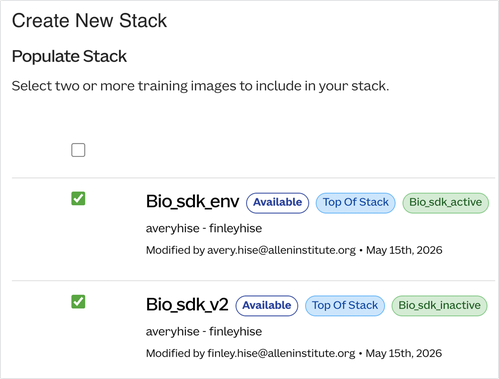
B. To select all available layers, select the checkbox at the top of the stack.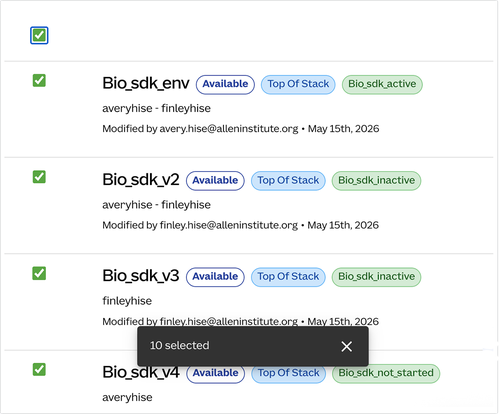
C. To browse available environments, use the pagination controls at the bottom of the page: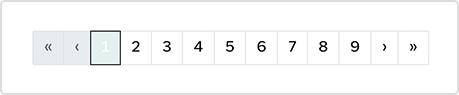
After you make your selections, click Next.

Click the radio button next to the environment you want to appear at the top of your stack.
Click Create Stack. You are returned to the Environments page, and the new stack appears on-screen at the top of the Recent Environments list.
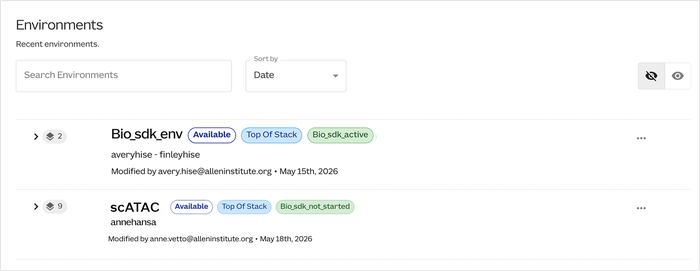
View, search, or sort
In the Environments section, find the stack you’re interested in. Click the arrow at left to expand the stack. In the expanded stack, the layers appear as a vertical list. The active environment is marked with a Top of Stack badge.
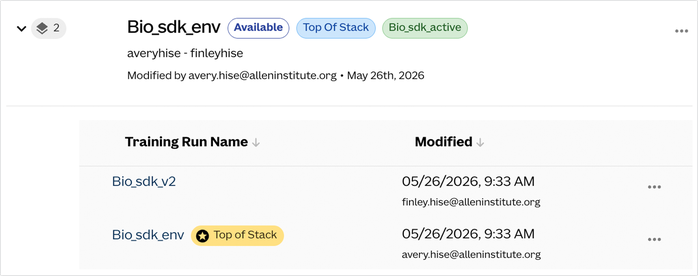
A. To sort the training run names in alphabetical order or reverse alpha order, click the arrow next to Training Run Name.
B. To sort chronologically by date, click the arrow next to Modified.
C. To drill down on a particular layer, click its name to open the Training Run Details page.
D. To edit template details or see other actions you can perform on the layer, click the ellipsis (...) to the right of the layer title.To search for an existing environment, use the search box at the top of the Environment window. To show or hide deleted layers in your search results, toggle the eye icon at right.
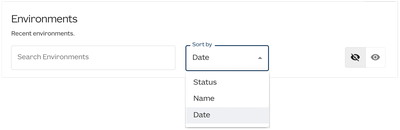
You can search by Name (or partial name), Date, or Status, such asAvailableorInitializedfor environments andSubmitted,Processing,Completed, orFailedfor training runs.
Add a layer to an existing stack
Use the following steps when you want to add an environment to an existing stack (for example, when a new model version replaces an older one):
NOTE: You can't use the Add to Stack option of the environment is already part of a stack.
In the Environments section, use the search box to find the environment you want to add to a stack.
Click Add to stack.
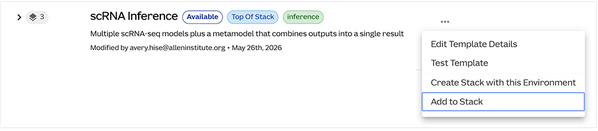
On the Add to Stack page, click the radio button next to the stack you would like to add the environment to.
To confirm your selection, click ADD TO STACK. The new environment appears in the stack immediately as a new layer, and the new layer moves to the top of the stack.
Set a layer as top of stack
The following instructions explain how to promote a different layer to the top of the stack:
On the AI/ML Environments page, find the stack you want to work with, and expand the stack.
In the Training Run Name column, find the layer you want to promote, and click the ellipsis (...) to the right of the layer.
Click Set as Top of Stack. No confirmation is necessary.
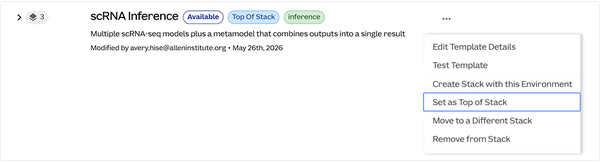
You're returned automatically to the Environments page. Click the icon to expand the stack. The Top of Stack badge now appears next to the layer you selected, and that environment is used as the stack title.
Move to different stack
Follow these steps when an environment created under one stack belongs with another project or pipeline:
On the AI/ML Environments page, find the stack you want to work with, and expand the stack.
Locate the layer you want to move, click the ellipsis (...), and choose Move to Different Stack.
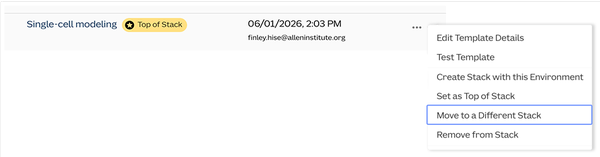
In the selection UI, click the radio button next to the destination stack, and click ADD TO STACK. The layer is appended to the destination stack and appears there as a new layer. The layer is removed from the original stack, but the environment remains intact.
Remove from stack
Remove an environment from a stack so it operates independently. The environment itself is preserved. Only its association with the stack is removed.
On the Environments page, find the stack that contains the environment you want to remove.
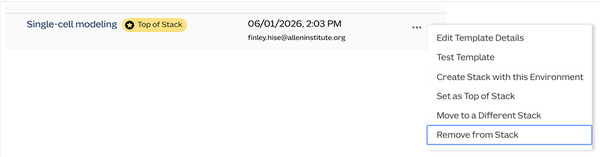
Click the ellipsis (...) next to that layer, and choose Remove from Stack. No confirmation is required. You are returned to the Environments page.
Dissolve a stack
Follow these steps when you no longer want to link a group of environments as a stack, but you want to keep the environments themselves:
On the Environments page, find the stack you want to dissolve, and click the ellipsis (...) to the right of the stack.
From the drop-down menu, select Dissolve Template Stack.

To confirm your selection, in the Dissolve Entire Stack? dialog box, click DISSOLVE STACK. The stack is removed, and each former layer becomes an independent environment. No environment is deleted during this action.