
Respond to IDE Vulnerability Notifications (Tutorial)
Last updated 2026-10-08At a Glance
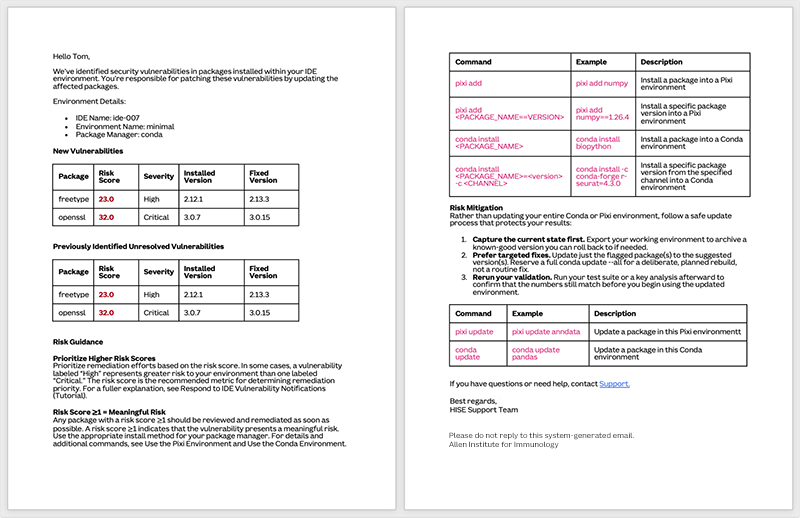
Over time, as your Python and R environments accumulate hundreds of installed packages, security vulnerabilities are likely to be identified in some of them. Every 2 weeks, the HISE environment security scanner checks your IDE environment packages and emails you a short, prioritized summary of its findings. This scanning supports the institute's compliance with NIST SP 800-171 requirements for vulnerability scanning and flaw remediation.
Updating a package can change numerical results, break pipelines, or alter algorithms and defaults in ways that change your outputs. To protect your analysis, preserve reproducibility, and avoid slowing your IDE or otherwise disrupting your work, the scanner reads a copy of your environment. It never modifies your environment or your files, letting you decide what and when to update.
Use this tutorial to understand what the scanner does, how to interpret its findings, and how to respond. If you have questions or need help, contact Support.
When to Use This Feature
Use this process in the following circumstances:
You receive an environment security scan email giving you early warning of vulnerabilities in your IDE environment(s).
You need to decide which findings to act on immediately and which ones can wait.
You want to update packages without compromising reproducibility.
You need to understand what to do when a finding can’t be fixed right away.
How the Environment Security Scanner Works
Runs automatically every 2 weeks—there's nothing for you to schedule or monitor, and it works even when your IDEs are stopped
Uses a read-only copy of your environment disk, so it never locks, slows, or edits your active environment
Takes an inventory of your installed packages and checks them for known vulnerabilities
Emails you a prioritized summary with the most important findings highlighted up front
How to Interpret a Finding
Each finding in your vulnerability summary includes the following information:
The package name and your installed version
A suggested patched version if one exists
A severity rating and a risk score ranging from 0 to 100
Use the risk score to help you decide what to address first. For example, prioritize a lower-severity issue with a higher risk score over a higher-severity issue with a lower risk score. (For a fuller explanation, see the next section of this document.)
If a finding does not include a fixed version, you can assume one is not currently available. The findings are divided into new vulnerabilities, as shown in the following example, and previously identified vulnerabilities (if any).
New Vulnerabilities
Package | Risk Score | Severity | Installed Version | Fixed Version | ||||
|---|---|---|---|---|---|---|---|---|
freetype | 23.0 | High | 2.12.1 | 2.13.3 | ||||
openssl | 32.0 | Critical | 3.0.7 | 3.0.15 |
NOTE
Do not update an environment that supports published or otherwise static results just to clear a finding.
Keep older environments isolated when you need them for reproducibility.
Do new work in an updated copy of the environment instead of changing the original.
Rely on Risk Score, Not Severity, to Prioritize Fixes
For each package vulnerability, your environment security scan shows two distinct metrics: severity and risk score. Severity describes how serious a vulnerability could be in a generic system. Risk score indicates how likely it is to be exploited in your environment and how great a threat it poses.
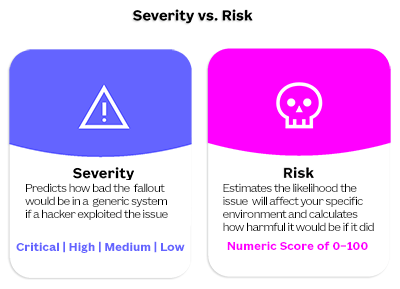
Because they're calculated differently and are independent of one another, they don't always align. A Critical vulnerability that's hard to exploit—say, it’s not exposed to the internet, or it's running in a test environment—might get a low risk score. A High vulnerability in a package under active attack, exposed to untrusted traffic, and running in a key analysis environment might get a high risk score.
Takeaway: Use the risk score to decide what to fix first, even if that means addressing a High-severity item before a Critical one.
NOTE
The Software Development Team maintains the base environments (such as Pixi Minimal V3 and Olink V3.1) and installs fixed versions for any known security vulnerabilities, so new IDEs created from these environments are as secure as possible.
When you create an IDE from a base environment, that IDE becomes an independent copy, and responsibility for remediating any vulnerabilities identified within the environment—even those inherited from the base environment at creation time—shifts to you as the IDE owner. When you're notified of a vulnerability, updating the affected package(s) directly in your own IDE fully resolves the issue. You don't need to recreate your IDE or return to the base environment to get the patch.
Instructions
Review and prioritize findings
Open the vulnerability scan email, and confirm which IDE environment or environments are at risk.
Review the findings and note the package name, installed version, suggested fixed version, and risk score for each item.
Prioritize as follows:
– Flagged packages that affect notebooks, scripts, tools, or workflows you actively use
– Active working environments, rather than environments that support published or otherwise static results
– Available, safe fixes (for packages that have no patched version, see Step 3)
Apply fixes
Before making changes, save the current state of your environment so you can roll back if needed.
Make targeted fixes by updating only the flagged package. The Python command to install a specific package version appears below. For details, see the Related Resources section on this page, or refer to the list of commands in your security vulnerability email notification.
pixi add PACKAGE_NAME==VERSION
# pixi add numpy==1.26.4
To confirm that your analyses still behave as expected, rerun your tests, key notebooks, or validation workflows after updating.
Troubleshoot issues
If a finding doesn't list a fixed version, you can’t patch it yet. Review whether the vulnerability applies to your active work, reduce your exposure to the package where possible, and watch for a future fix in later vulnerability notifications.
Some findings might not affect your actual setup, or they might not reflect how you use the package. If a finding looks wrong or irrelevant, contact HISE Support, and include the environment details and the finding you’d like to have reviewed.
If your results change after an update, stop using the updated environment for active work until you understand the effects of the change. If necessary, roll back to your saved environment state, and validate again, or file a support ticket for help planning a safer update path.
Related Resources
Use the Conda Environment (Tutorial)
Use HISE SDK Methods and Get Help in the IDE
Install an R Package from GitHub into a Pixi Environment (Tutorial)
Install a Python Package from GitHub into a Pixi Environment (Tutorial)