Last modified 2026-03-09 |
Download Files to Your Laptop (Tutorial)
At a Glance
| Abbreviations Key |
Human Immune System Explorer | |
IDE | integrated development environment |

At a Glance
Sometimes you need to open HISE-generated files in third‑party software that runs locally on your laptop, such as FlowJo or Xenium Ranger. You can securely download these files directly from HISE to work with them offline. Not all file types are downloadable by default. If a specific file you want to use is not listed as downloadable, contact Support.
When to Use This Feature
Download files to your laptop in the following circumstances:
The analysis or visualization software you need isn't directly integrated into HISE.
You must open and analyze a file in a local desktop application (for example, a FlowJo workspace file or a Xenium tar file).
| You don't need to re-upload the changed file afterward—this feature is just for downloading local copies. |

Instructions
 Find the files you want to download
1. Navigate to HISE, and use your organizational email address to sign in.
2. In the top navigation menu, click Research > Advanced Search.
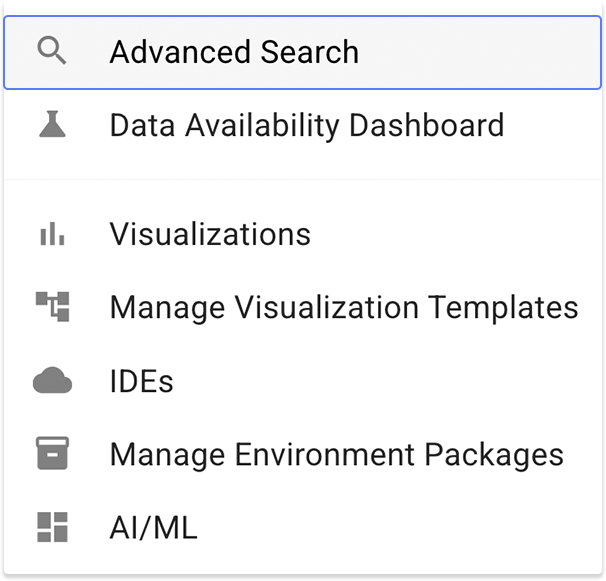
In the left panel, use the search filters to find the dataset you want to download. For details, seee Use Advanced Search for Basic Queries (Tutorial) and Use Advanced Filters for Complex Searches (Tutorial).
In the results window, look for a Downloadable tag beneath the filename. Click the checkbox next to the file you want to download.
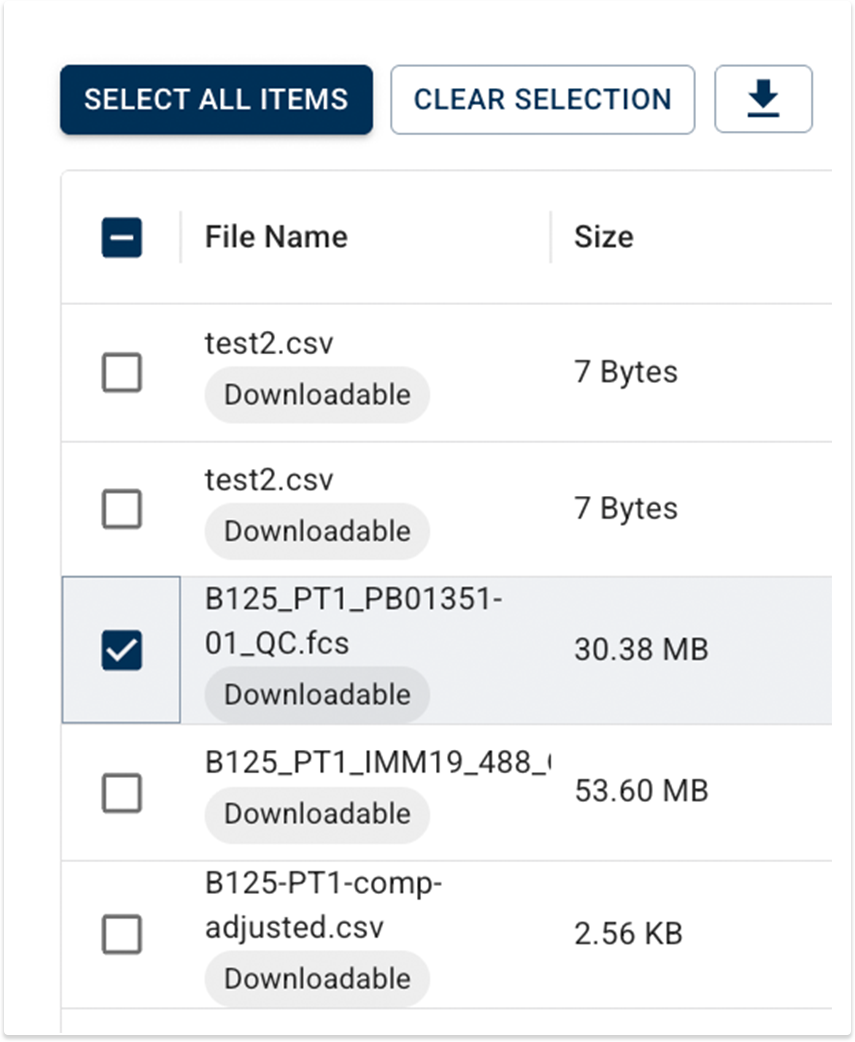
 | Most HISE files are designed for analysis or visualization, so only specific file types are marked as downloadable in Advanced Search. Files that support in-platform workflows (for example, in IDEs or plots) can't be downloaded because they depend on HISE's cloud environment or aren't designed for use with desktop tools. If a specific file type you want to use on your laptop doesn't appear to be downloadable in HISE, contact Use Advanced Filters for Complex Searches (Tutorial). If you have questions or need help, contact Support to request that it be marked as downloadable. |
 Download a file
| Only one file can be downloaded at a time. The download link protects access to storage by expiring automatically, and the file is saved to your browser’s usual download location on your laptop. If you need the original file again later, return to Advanced Search and click the icon to generate a fresh link. |
1. Click the download icon at the top of the results window.
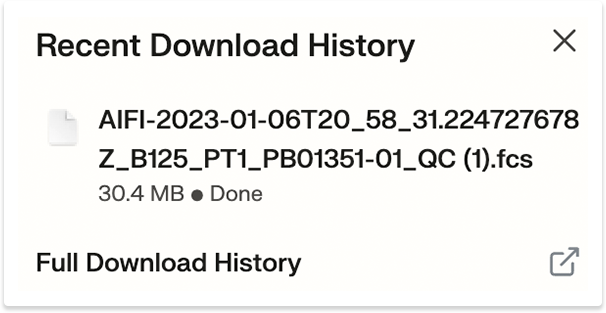
2. HISE generates a secure download link, and the file begins downloading to your laptop.

3. When the download is finished, it becomes a regular file on your laptop that you can open, move, rename, or archive like any other local file.
 Related Resources
Work with File Sets (Tutorial)
Use Advanced Search for Basic Queries (Tutorial)
Use Advanced Filters for Complex Searches (Tutorial)