
Create and Test No-Code Visualization Templates (Tutorial)
Last updated 2026-08-26At a Glance
The no-code visualizations tool helps scientists derive new insights from pipeline results without writing any code. Researchers can select samples or data sets of interest and generate visualizations that help them analyze and present their data in new ways and accelerate the generation of new hypotheses.
Use the workflow described in this tutorial to test no‑code visualization templates with real HISE data, verify that files match each template’s data contract, and review run status and logs before you publish visualizations for noncoding scientists.
When to Use This Feature
Use this feature when you’re a data analyst who wants to create a visualization template that other scientists can reuse across studies by running it with datasets that match the template’s data contract.
Description
Without performing any complex coding tasks, scientists can use no-code visualizations to visualize and explore data, share it with others, and save the output. For example, the tool could display a single data set depicting gene expression associated with various metadata fields, or it could compare two different data sets side by side.
You can develop a template and save the finished files to HISE. Then scientists or other analysts can do an advanced search, choose a data set, and generate an interactive visualization based on your saved template. The visualization template serves as a reusable layout, a data contract describes the data the template requires, and file‑type metadata helps HISE match real files to those requirements so your template reliably generates the expected visualization.

NOTE
Templates are created and saved at the account level, so different account holders have different visualization templates available to them.
Instructions
Create the template and data contract
Build the visualization app in an IDE in the HISE dev environment.
Package the code and dependencies into a Docker image.
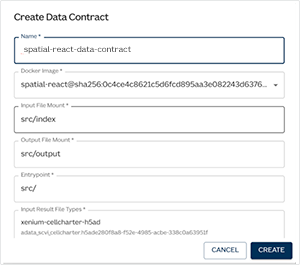
Define the data contract.
Save and review the template
To save the completed template to HISE, call
save_abstraction().In HISE, go to Research > Manage Visualization Templates, and confirm that the saved template appears on the page.
NOTE
Visualization templates use the same stacking behavior as other HISE resources, so additional versions of the same template will be automatically grouped into a stack, or you can create a stack manually from any two or more visualization templates.To open the Details panel, select the template. Then review the template metadata, including the title, description, creation details, IDE source, data contract, and compatible input and result file types.
Test the template
Go to Research > Advanced Search, and select a file or set of files compatible with the template's data contract.
From the Details panel on the Manage Visualization Templates page, start the testing flow to validate the selected file(s), build a configured data source for the template, construct the visualization, and return status or error information for the run.